> ## Documentation Index
> Fetch the complete documentation index at: https://docs.magicmealkits.com/llms.txt
> Use this file to discover all available pages before exploring further.
# Activate Google Cloud billing (upgrade)
> Keep your Magic Meal Kits server running after the Google Cloud free trial: activate billing (upgrade) so the project isn't suspended — plus what it costs.
Your Magic Meal Kits server runs in **your own Google Cloud project**. If you started on
the Google Cloud **free trial**, you must **activate billing (upgrade)** before the trial
ends — otherwise Google Cloud suspends the project and your server stops.
**Upgrade is required.** If you were on the Google Cloud free trial, the service is
**suspended once the trial ends** unless you complete the upgrade (activate billing).
## How to upgrade
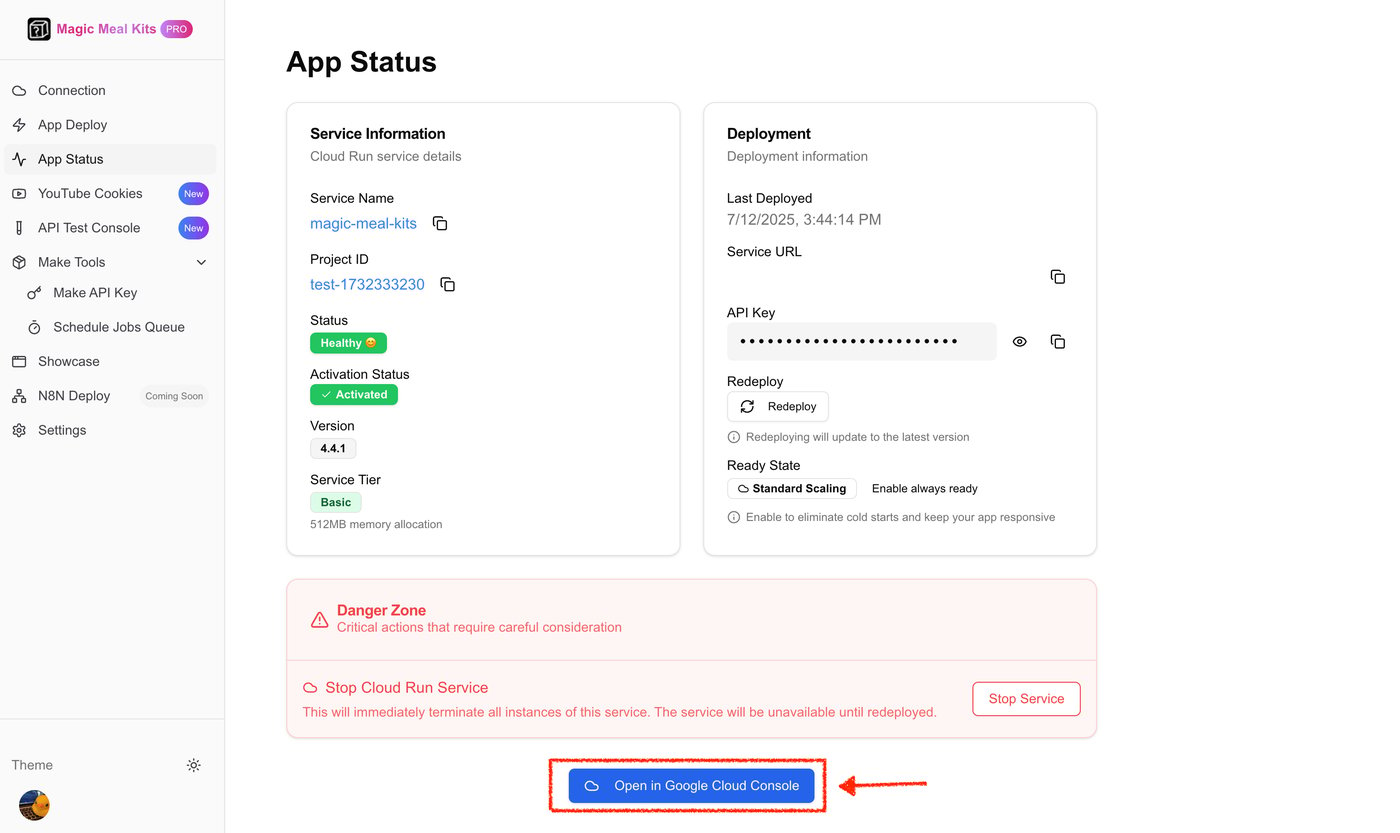
On the Magic Meal Kits **App Status** screen, click **Open in Google Cloud Console**.
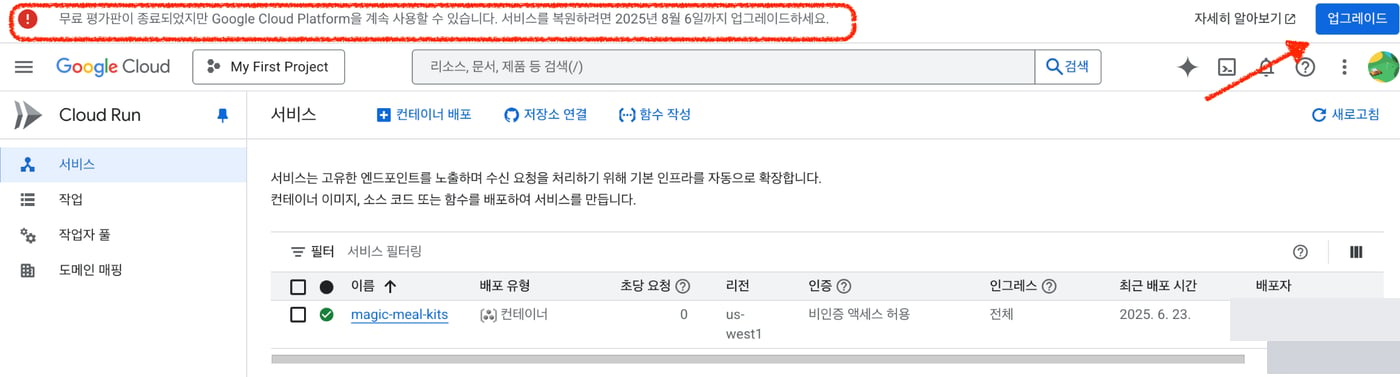
 In Google Cloud Console, look at the notice banner across the top. A free-trial message
with an **Activate** (활성화) / **Upgrade** (업그레이드) button means you're still on the
free trial.
In Google Cloud Console, look at the notice banner across the top. A free-trial message
with an **Activate** (활성화) / **Upgrade** (업그레이드) button means you're still on the
free trial.
 Click **Upgrade** (업그레이드) / **Activate** (활성화) in the banner and follow the prompt
to add a billing account. Once billing is active, the project is no longer time-limited
and the server keeps running.
Click **Upgrade** (업그레이드) / **Activate** (활성화) in the banner and follow the prompt
to add a billing account. Once billing is active, the project is no longer time-limited
and the server keeps running.
 After upgrading, **double-check that billing is active** on your project. The installer's
**Recheck Billing** step (see the [installation guide](/installation)) confirms it before
deploying.
## Google Cloud billing
* Google Cloud is a **pay-as-you-go** service.
* After the free trial ends, an **active billing account is required**.
* If billing isn't set up correctly, the service **cannot run**.
## Does Google Cloud charge you?
* The service is designed to run **within Google Cloud's free usage tier**.
* For **normal use, you typically pay nothing extra**.
* Only **heavy/excessive traffic** may incur a small Google Cloud charge.
## Still stuck?
If the server doesn't recover right after you activate billing, give it **20–30 minutes** —
cold start / propagation can return `503` or `429` for a while, which is normal; don't
redeploy repeatedly. If it still fails,
[contact support](https://open.kakao.com/me/pureugong) with your account email.
After upgrading, **double-check that billing is active** on your project. The installer's
**Recheck Billing** step (see the [installation guide](/installation)) confirms it before
deploying.
## Google Cloud billing
* Google Cloud is a **pay-as-you-go** service.
* After the free trial ends, an **active billing account is required**.
* If billing isn't set up correctly, the service **cannot run**.
## Does Google Cloud charge you?
* The service is designed to run **within Google Cloud's free usage tier**.
* For **normal use, you typically pay nothing extra**.
* Only **heavy/excessive traffic** may incur a small Google Cloud charge.
## Still stuck?
If the server doesn't recover right after you activate billing, give it **20–30 minutes** —
cold start / propagation can return `503` or `429` for a while, which is normal; don't
redeploy repeatedly. If it still fails,
[contact support](https://open.kakao.com/me/pureugong) with your account email.