> ## Documentation Index
> Fetch the complete documentation index at: https://docs.magicmealkits.com/llms.txt
> Use this file to discover all available pages before exploring further.

# Share system logs with support

> Use this when support asks for your Magic Meal Kits logs — download the system logs from Google Cloud and send them, along with your account email and symptom, to support.

When you report a problem, support often needs your **system logs** to diagnose it. This
guide shows how to capture the logs from Google Cloud and what to send.

## Before you start

* You need a Magic Meal Kits account.
* You need access to [make.magicmealkits.com/app-status](https://make.magicmealkits.com/app-status).
* Have your **account email** and a short **description of the symptom** ready.

## Download your system logs

<Steps>
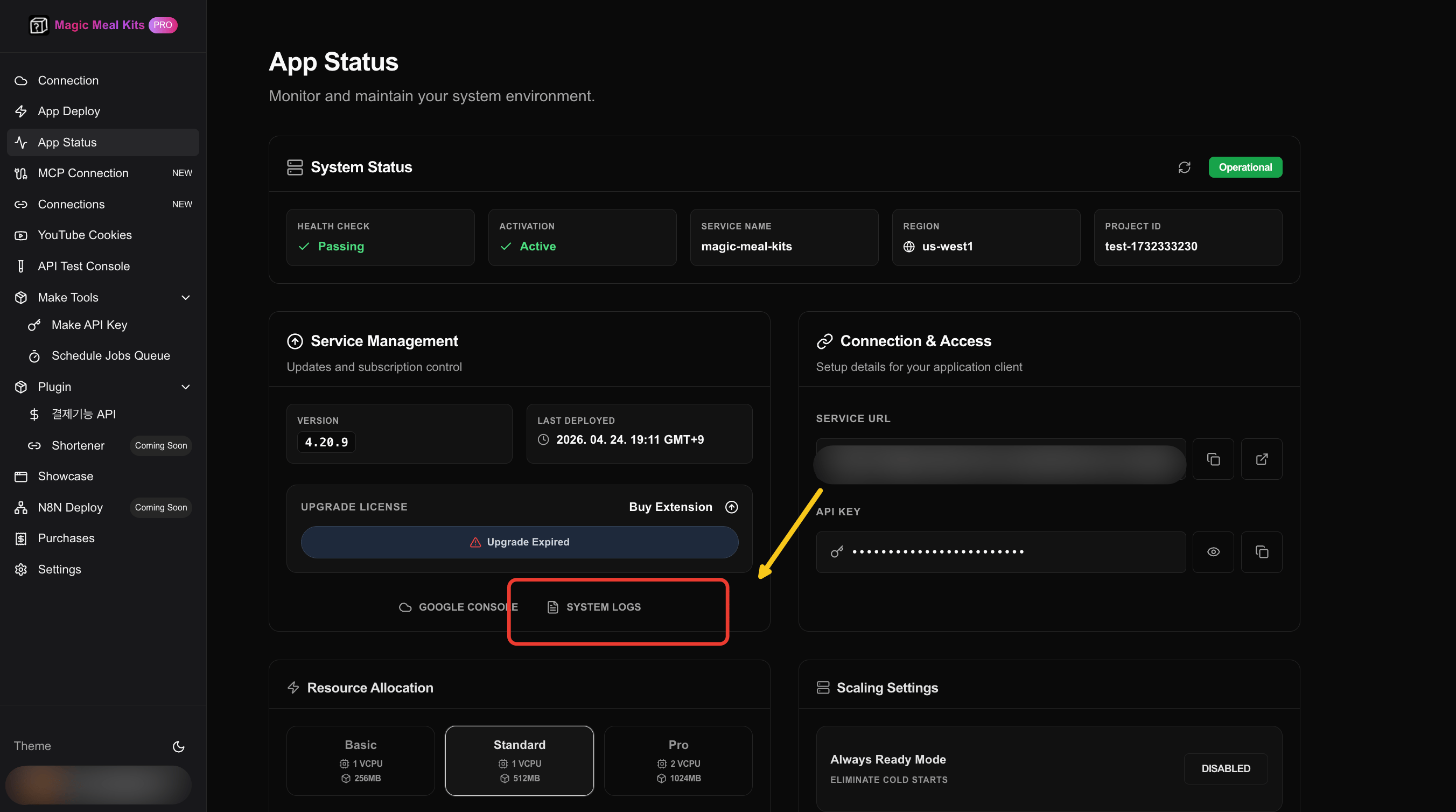
  <Step title="Open System Logs">
    Go to [make.magicmealkits.com/app-status](https://make.magicmealkits.com/app-status)
    and click **System Logs**.
    <Frame>
      <img src="https://mintcdn.com/mmk-5fd4bbfe/KDPw8YFM0S5oyWgw/assets/operations/system-logs/step01.png?fit=max&auto=format&n=KDPw8YFM0S5oyWgw&q=85&s=a1f567c6be3f74e4a9431f715424a8c7" alt="System Logs button on App Status" width="2704" height="1508" data-path="assets/operations/system-logs/step01.png" />
    </Frame>
  </Step>

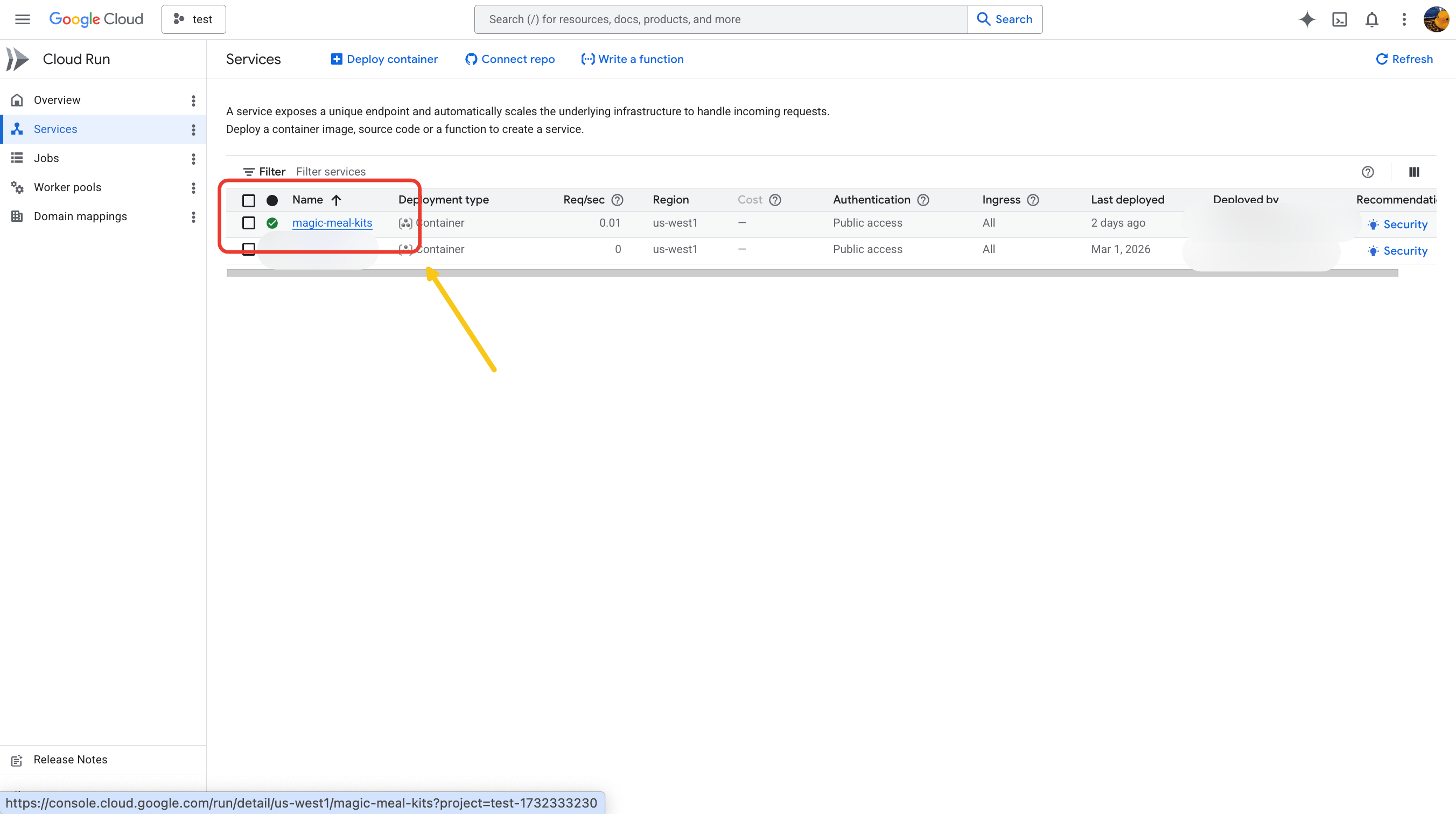
  <Step title="Select the service">
    In Google Cloud, click the **magic-meal-kits** service.
    <Frame>
      <img src="https://mintcdn.com/mmk-5fd4bbfe/KDPw8YFM0S5oyWgw/assets/operations/system-logs/step02.png?fit=max&auto=format&n=KDPw8YFM0S5oyWgw&q=85&s=4e1d229056a43534654254293e2b5d1a" alt="Selecting the magic-meal-kits service in Google Cloud" width="2704" height="1512" data-path="assets/operations/system-logs/step02.png" />
    </Frame>
  </Step>

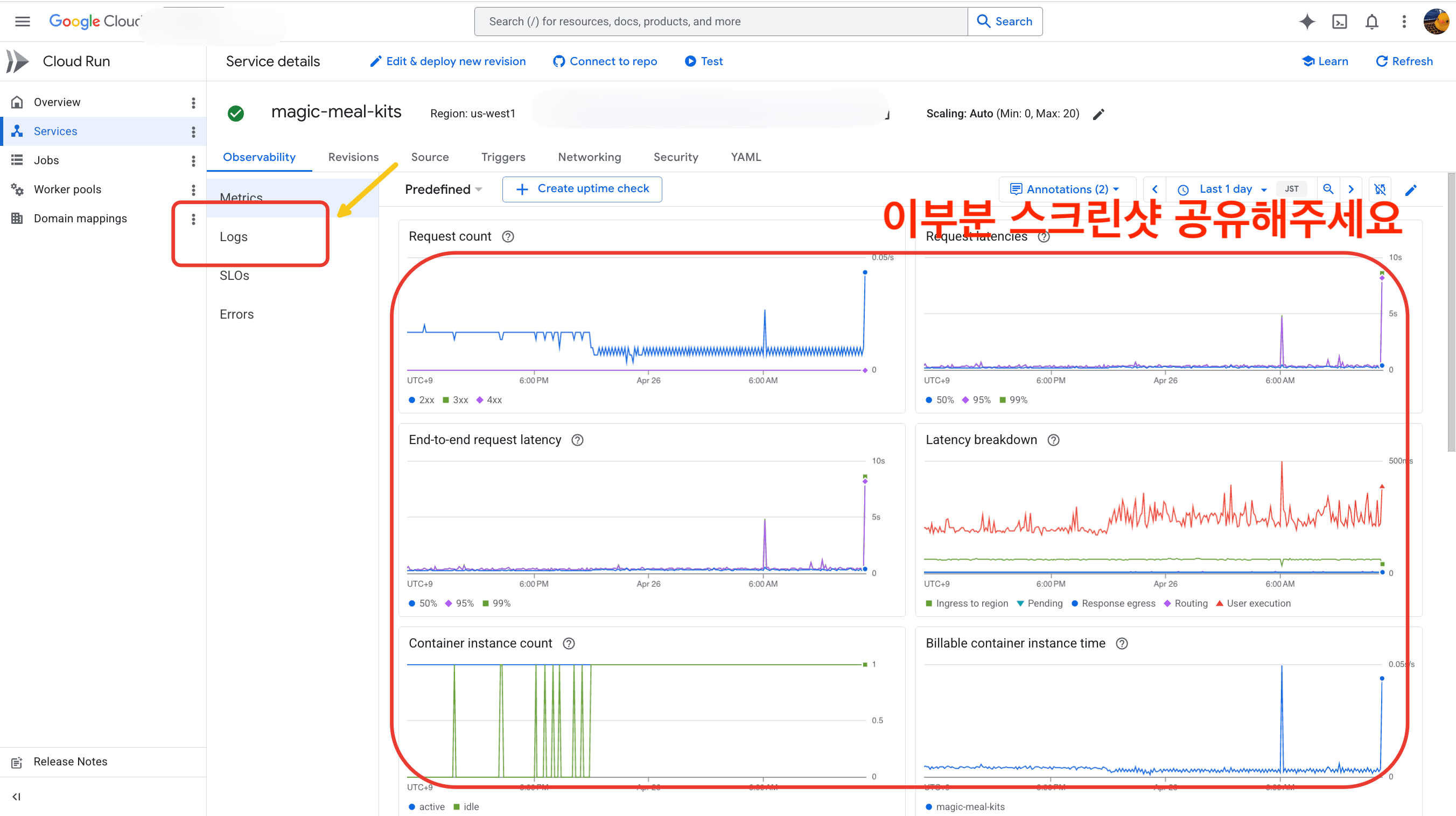
  <Step title="Screenshot the graphs">
    Take a screenshot of **all** the graphs shown on the screen — you'll send these to
    support.
    <Frame>
      <img src="https://mintcdn.com/mmk-5fd4bbfe/KDPw8YFM0S5oyWgw/assets/operations/system-logs/step03.png?fit=max&auto=format&n=KDPw8YFM0S5oyWgw&q=85&s=1d67f0c40cfc0a572fbde8a974a21bd4" alt="Service metrics graphs to screenshot" width="2704" height="1516" data-path="assets/operations/system-logs/step03.png" />
    </Frame>
  </Step>

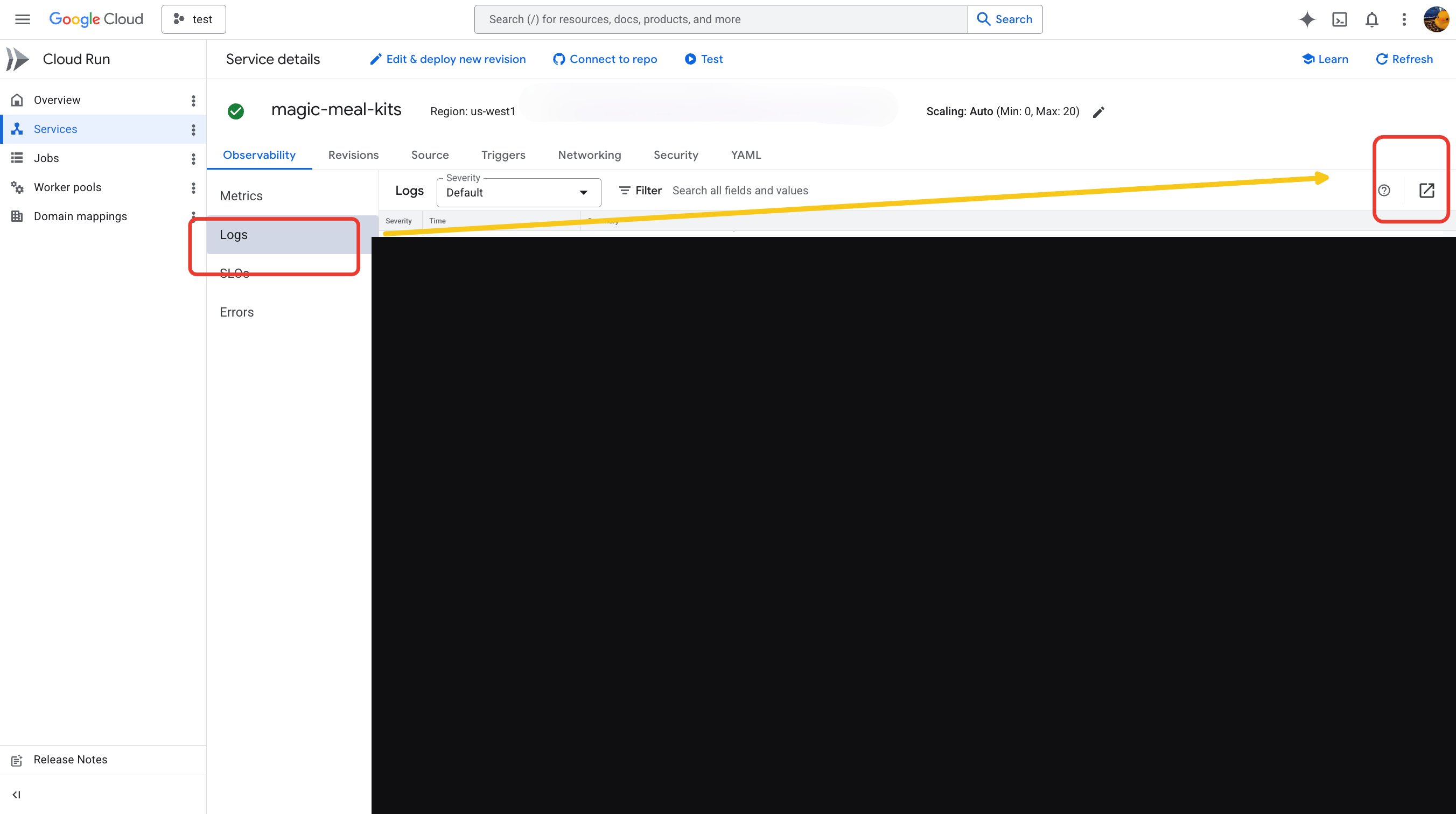
  <Step title="Open the Logs menu">
    Click **Logs** on the left, then click the button on the right.
    <Frame>
      <img src="https://mintcdn.com/mmk-5fd4bbfe/KDPw8YFM0S5oyWgw/assets/operations/system-logs/step04.png?fit=max&auto=format&n=KDPw8YFM0S5oyWgw&q=85&s=c402e6b6fcce67a103056a44aae2e583" alt="Logs menu in Google Cloud" width="2704" height="1512" data-path="assets/operations/system-logs/step04.png" />
    </Frame>
  </Step>

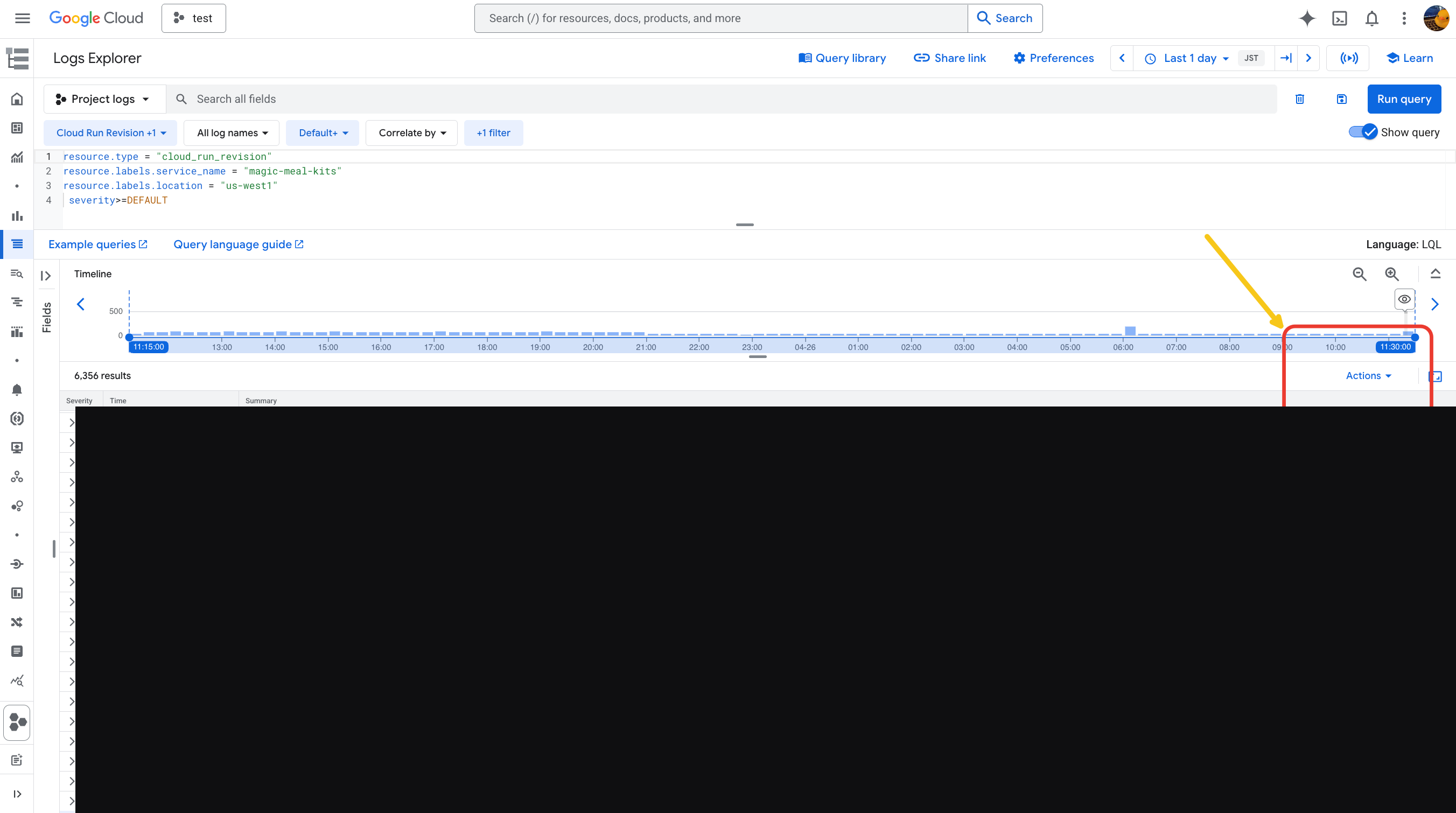
  <Step title="Click Action">
    When the view changes, click **Action** on the right.
    <Frame>
      <img src="https://mintcdn.com/mmk-5fd4bbfe/KDPw8YFM0S5oyWgw/assets/operations/system-logs/step05.png?fit=max&auto=format&n=KDPw8YFM0S5oyWgw&q=85&s=f43937268366ab33316cc59d53041ae0" alt="Action button in the logs view" width="2704" height="1510" data-path="assets/operations/system-logs/step05.png" />
    </Frame>
  </Step>

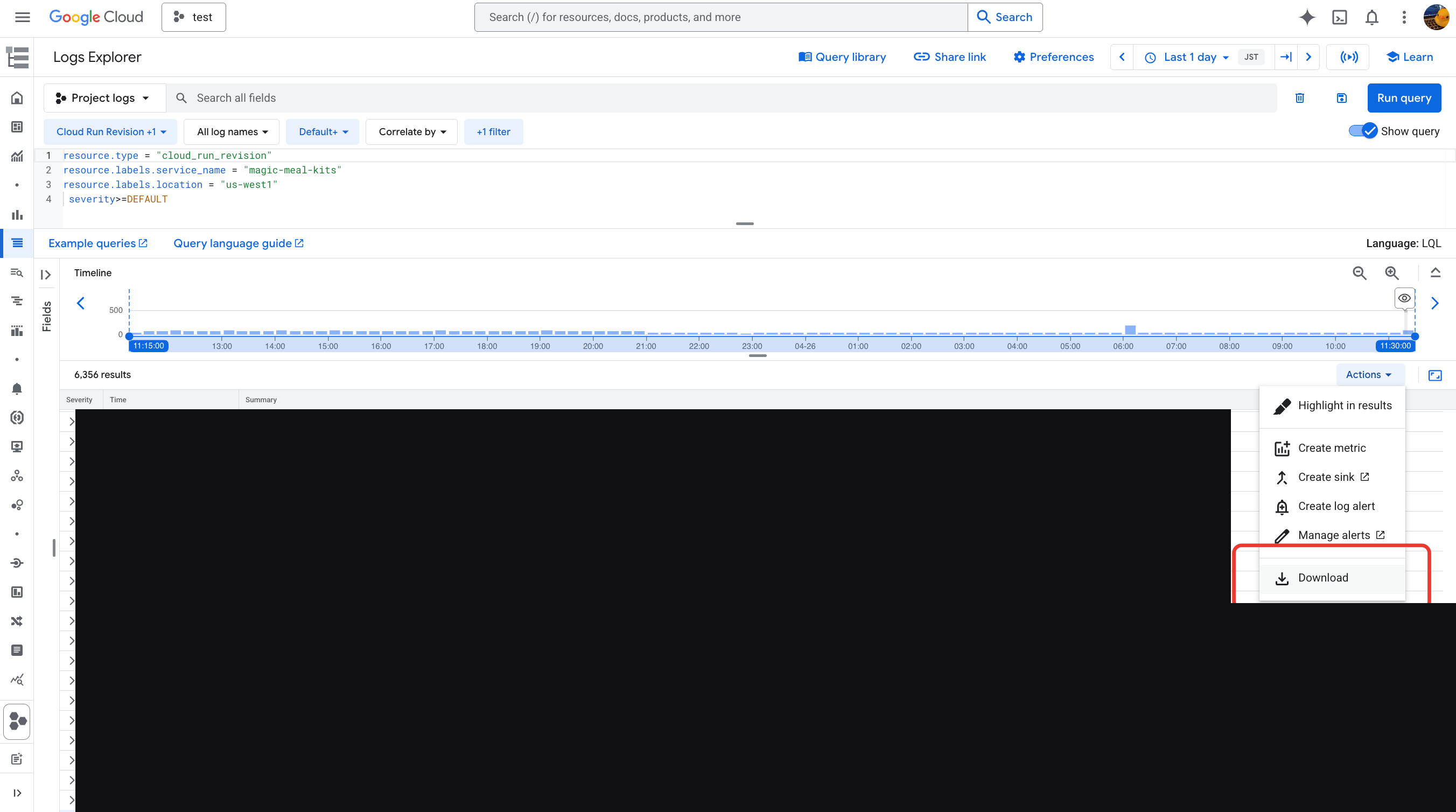
  <Step title="Click Download">
    Click **Download** at the bottom.

    <Frame>
      <img src="https://mintcdn.com/mmk-5fd4bbfe/KDPw8YFM0S5oyWgw/assets/operations/system-logs/step06.png?fit=max&auto=format&n=KDPw8YFM0S5oyWgw&q=85&s=63ecd573da7935f06caa087615605bfc" alt="Download option for logs" width="2704" height="1508" data-path="assets/operations/system-logs/step06.png" />
    </Frame>
  </Step>

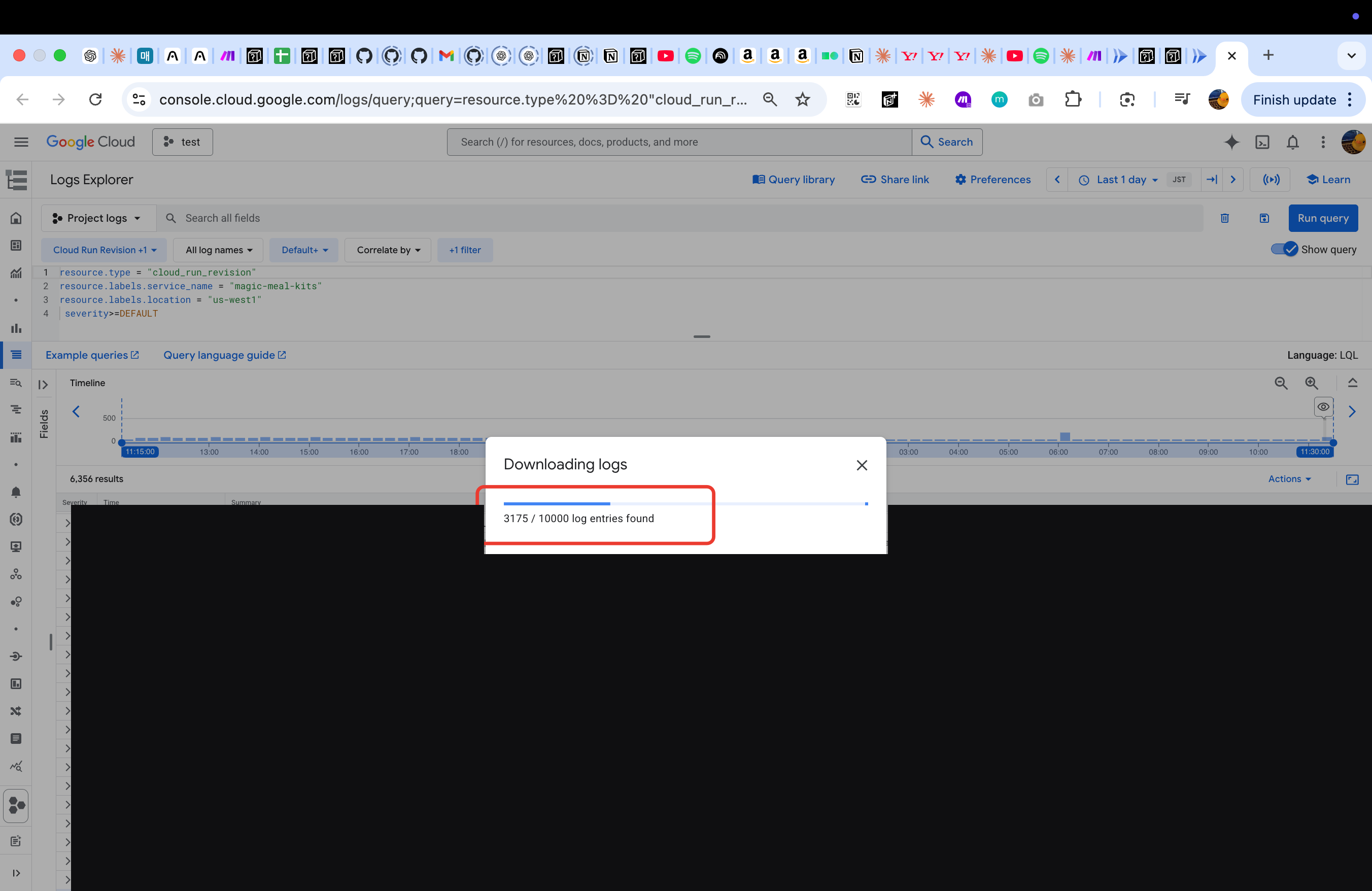
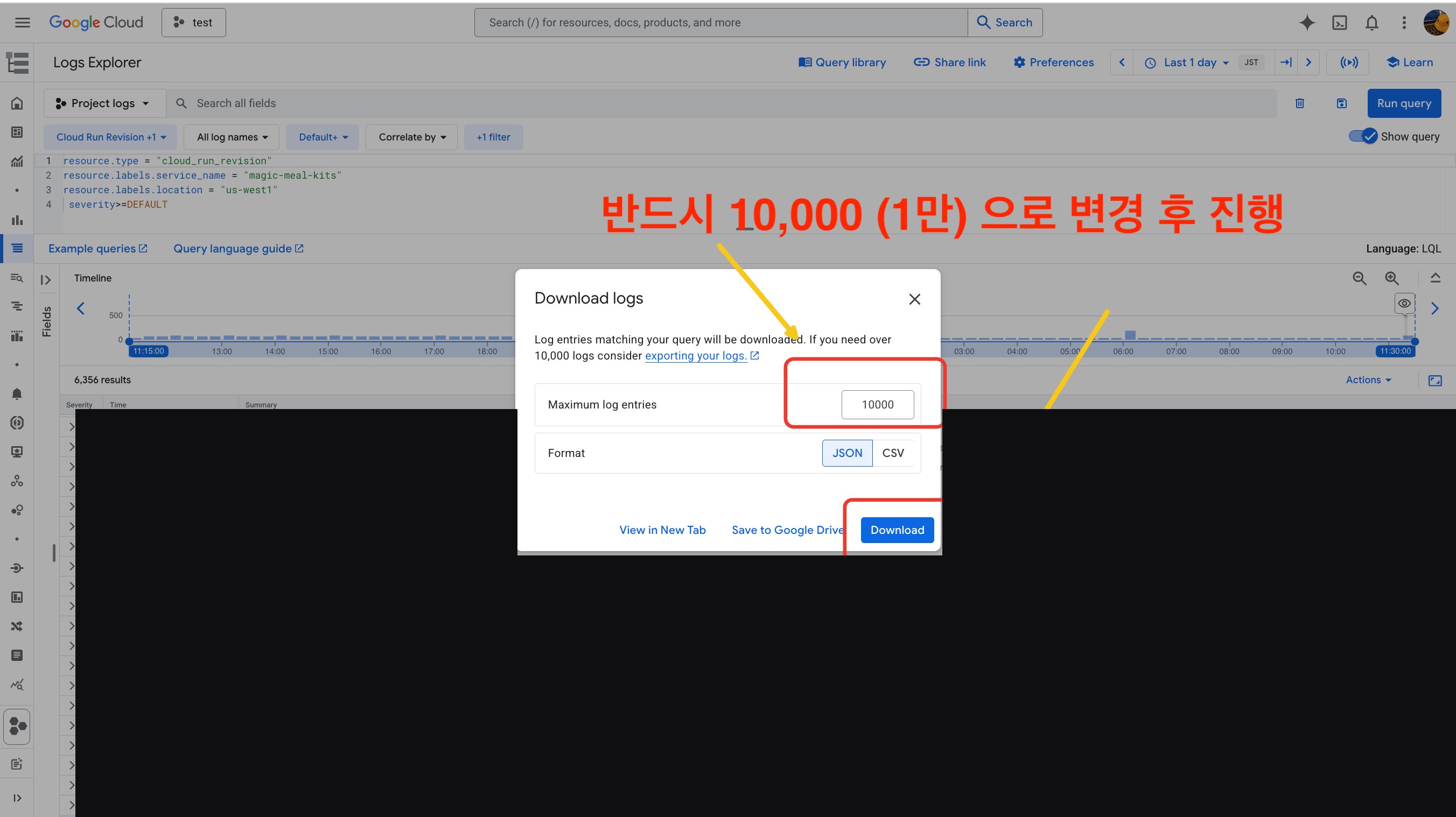
  <Step title="Set the row count to 10,000">
    Change the number to **10,000**, then start the download.
    <Frame>
      <img src="https://mintcdn.com/mmk-5fd4bbfe/KDPw8YFM0S5oyWgw/assets/operations/system-logs/step07.png?fit=max&auto=format&n=KDPw8YFM0S5oyWgw&q=85&s=d2def53d5616f4888c0fa22b2ac715d4" alt="Setting the log download count to 10,000" width="2704" height="1518" data-path="assets/operations/system-logs/step07.png" />
    </Frame>
  </Step>

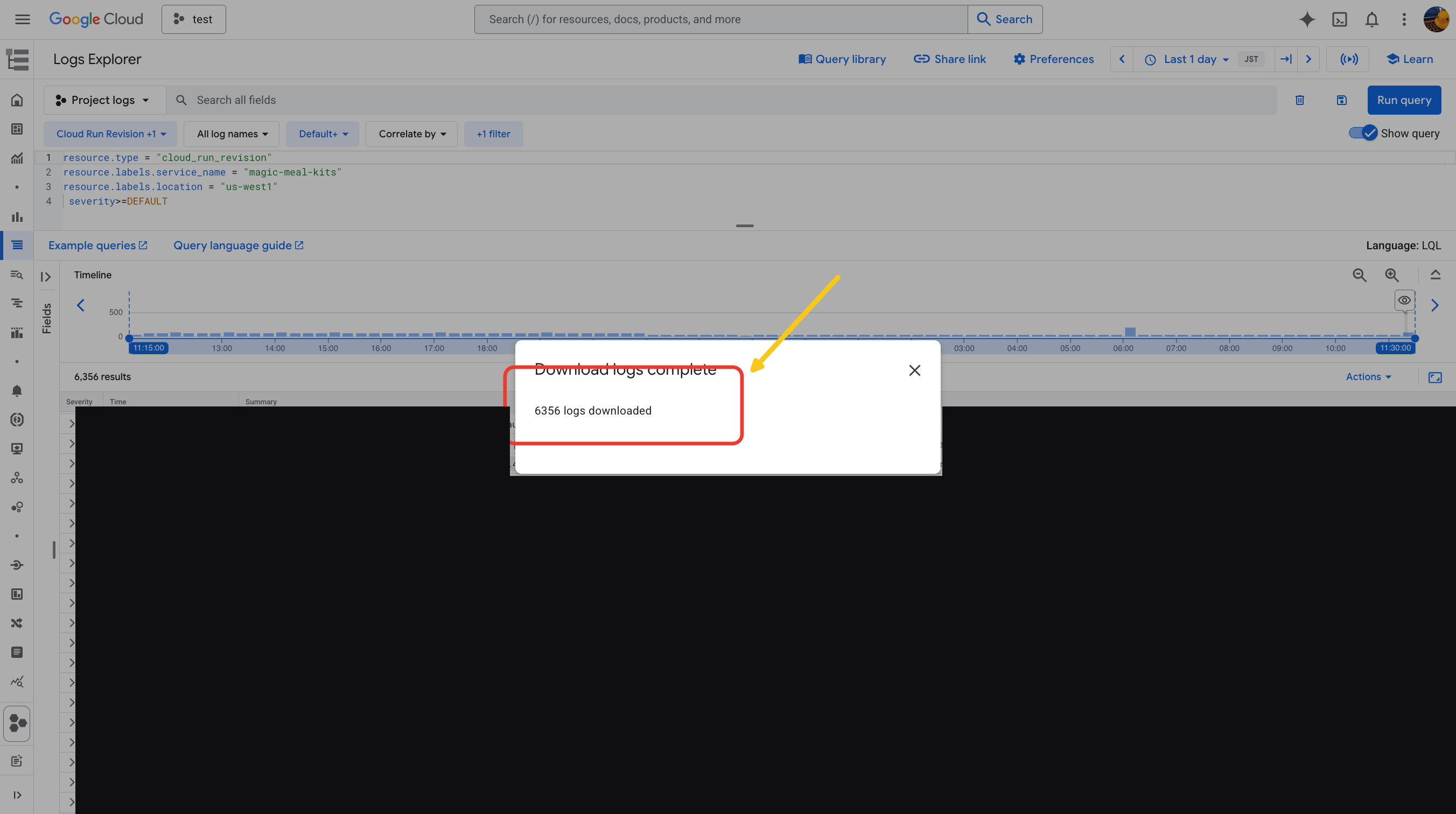
  <Step title="Confirm the download">
    Check that the download completed.

    <Frame>
      <img src="https://mintcdn.com/mmk-5fd4bbfe/KDPw8YFM0S5oyWgw/assets/operations/system-logs/step08.png?fit=max&auto=format&n=KDPw8YFM0S5oyWgw&q=85&s=1c05f94bc9eb66ae5496acaf515f4fd5" alt="Confirming the log file download" width="2704" height="1756" data-path="assets/operations/system-logs/step08.png" />
    </Frame>
  </Step>
</Steps>

When the log file has downloaded, you're ready.
<Frame caption="A successfully downloaded log file">
  <img src="https://mintcdn.com/mmk-5fd4bbfe/KDPw8YFM0S5oyWgw/assets/operations/system-logs/step09.png?fit=max&auto=format&n=KDPw8YFM0S5oyWgw&q=85&s=91436f70fbfbe8b12a86c1b5d68f6fad" alt="Downloaded log file" width="2704" height="1512" data-path="assets/operations/system-logs/step09.png" />
</Frame>

## Send these to support

Share the following **four items** with support via KakaoTalk:

* **Your Magic Meal Kits account email**
* **A description of the symptom**
* **The metrics graph screenshots** (from Step 3)
* **The log file** (from Steps 7–8)

<Note>
  KakaoTalk support chat: [pf.kakao.com/\_fMgxdn/chat](http://pf.kakao.com/_fMgxdn/chat)
</Note>