

When you need this
That message is misleading. It appears whenever the server cannot look the user up, and an expired token is the most common reason.If the module fails with a permission error instead — the token is fresh but a specific
page or database was never shared with it — see
Notion connection & permission errors. That is a different
problem with a different fix.
Renew the token
1
Open Connections in Make
In Make, go to Credentials → Connections in the left sidebar.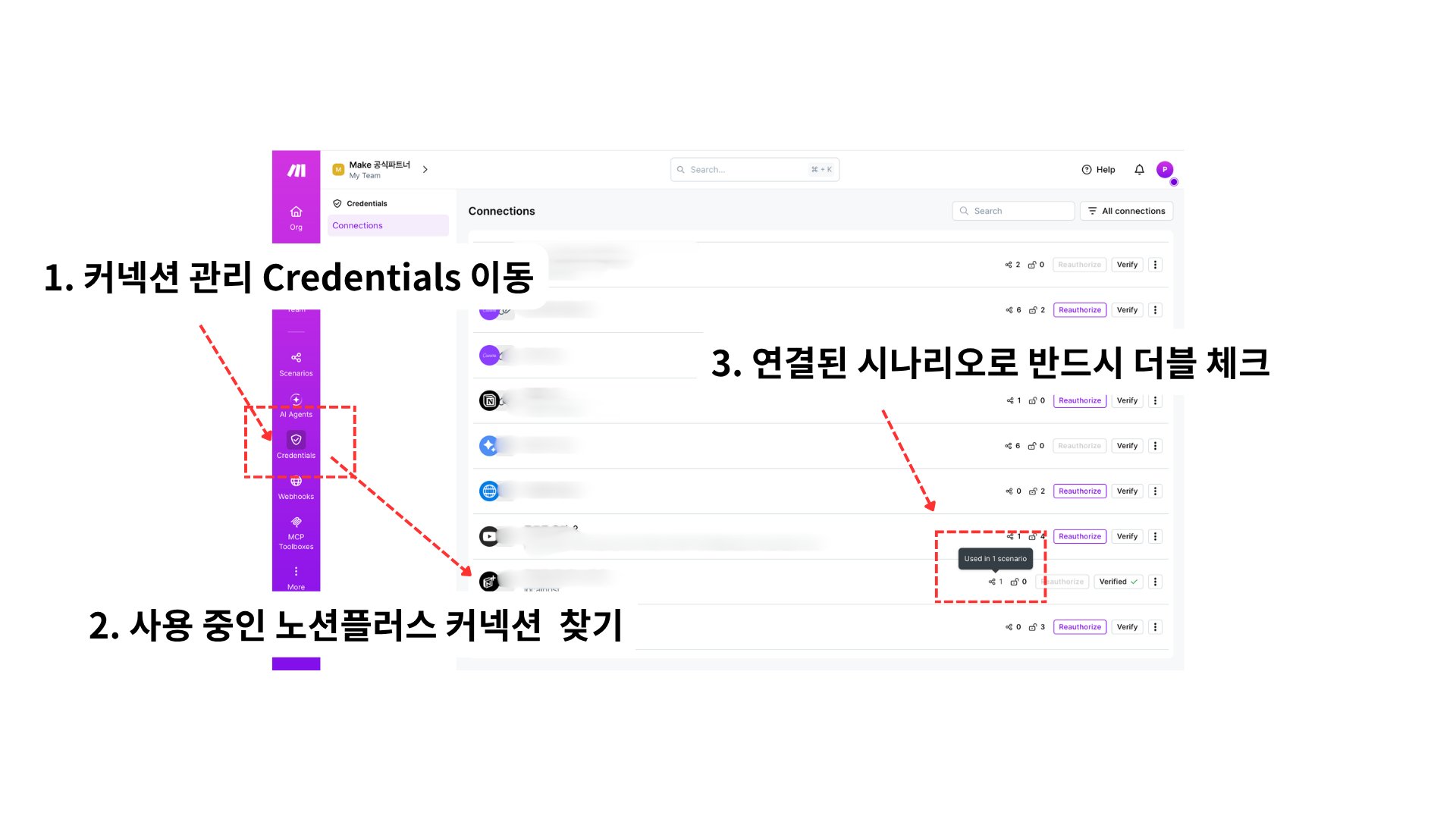
2
Find the Notion Plus connection you actually use
Locate the Notion Plus connection your scenarios run on.Check the Used in N scenario count on the row before you change anything. Teams
often accumulate several similar-looking connections, and editing the wrong one leaves
the broken scenario broken while breaking a working one.
3
Open the edit dialog
Click the ⋮ menu at the end of the row, then click Edit.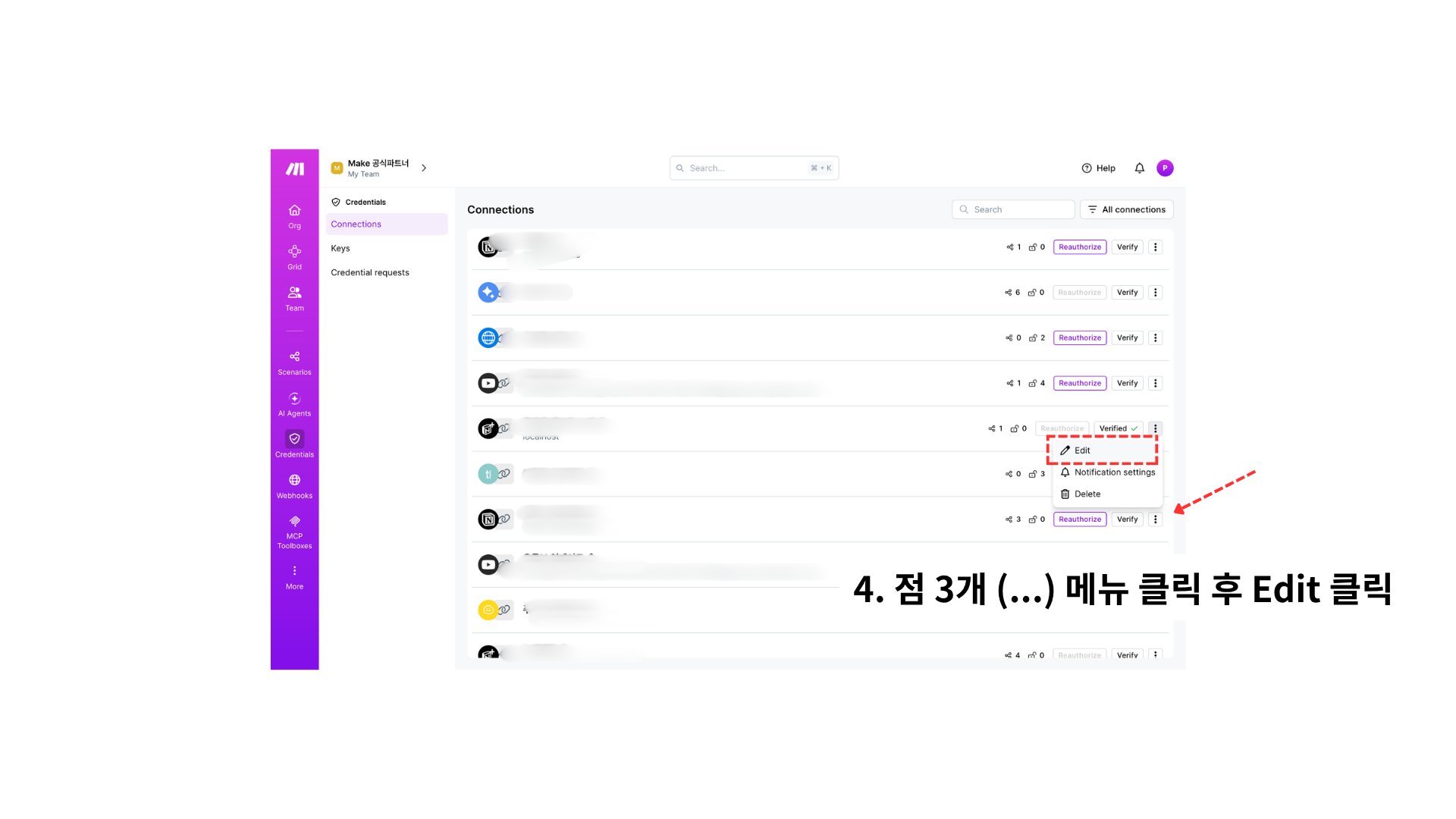
4
Replace the Notion Token — and nothing else
Make warns that editing a connection can break it. That warning is about the other
fields, not the token.Leave these exactly as they are: Magic Meal Kits Service URL, API Key,
Notion Space ID, Notion User ID.Clear the Notion Token field and paste the new token.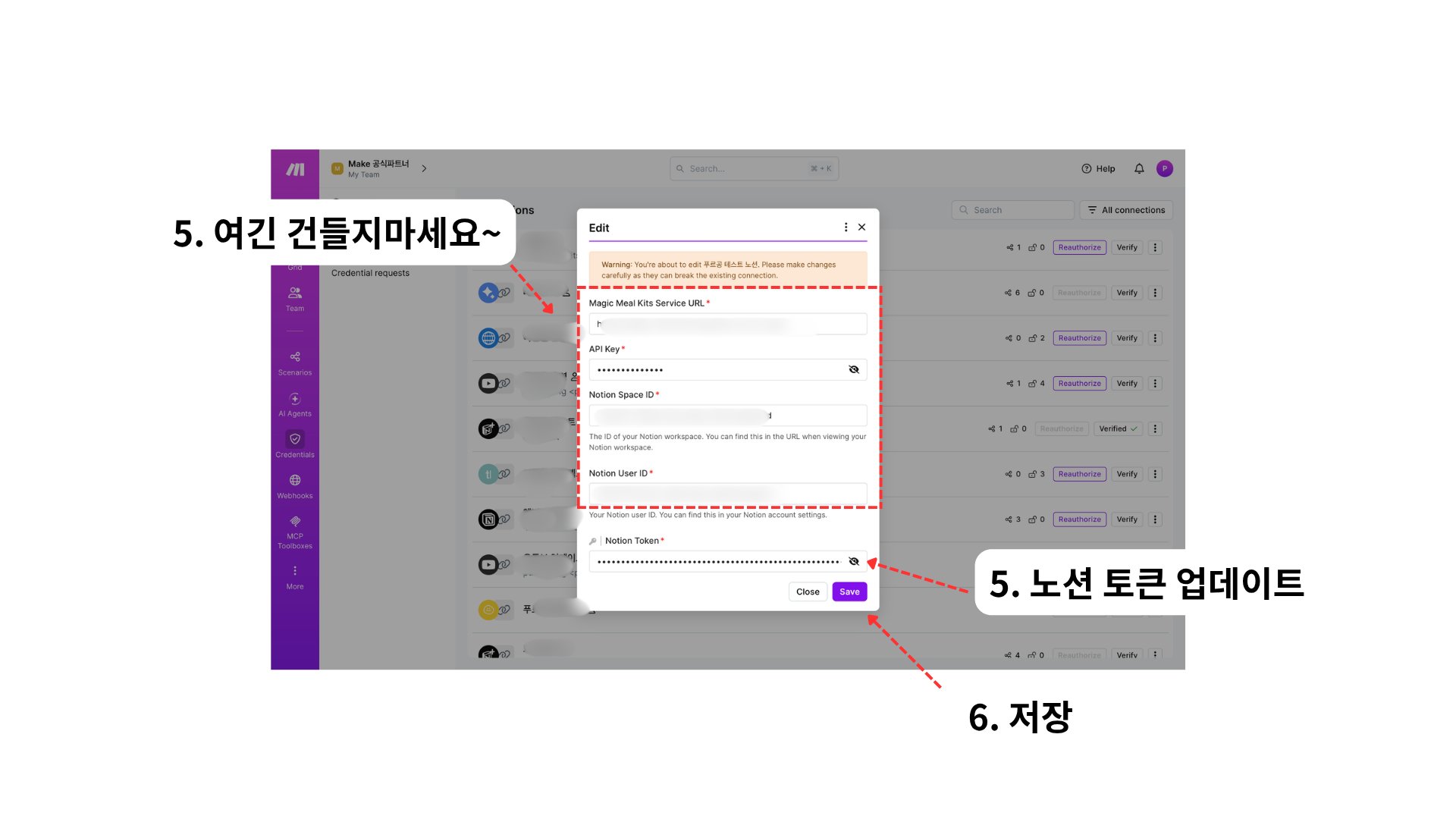
Space ID and User ID belong to your workspace and your account — they do not expire, so
a token renewal never needs them. This is why renewing is safe even when you cannot look
those values up.
5
Save
Click Save. If the connection row offers Verify, run it — a green result confirms
the new token was accepted.
6
Re-run the scenario
Open a scenario that uses this connection and run it once. A successful run is the real
confirmation.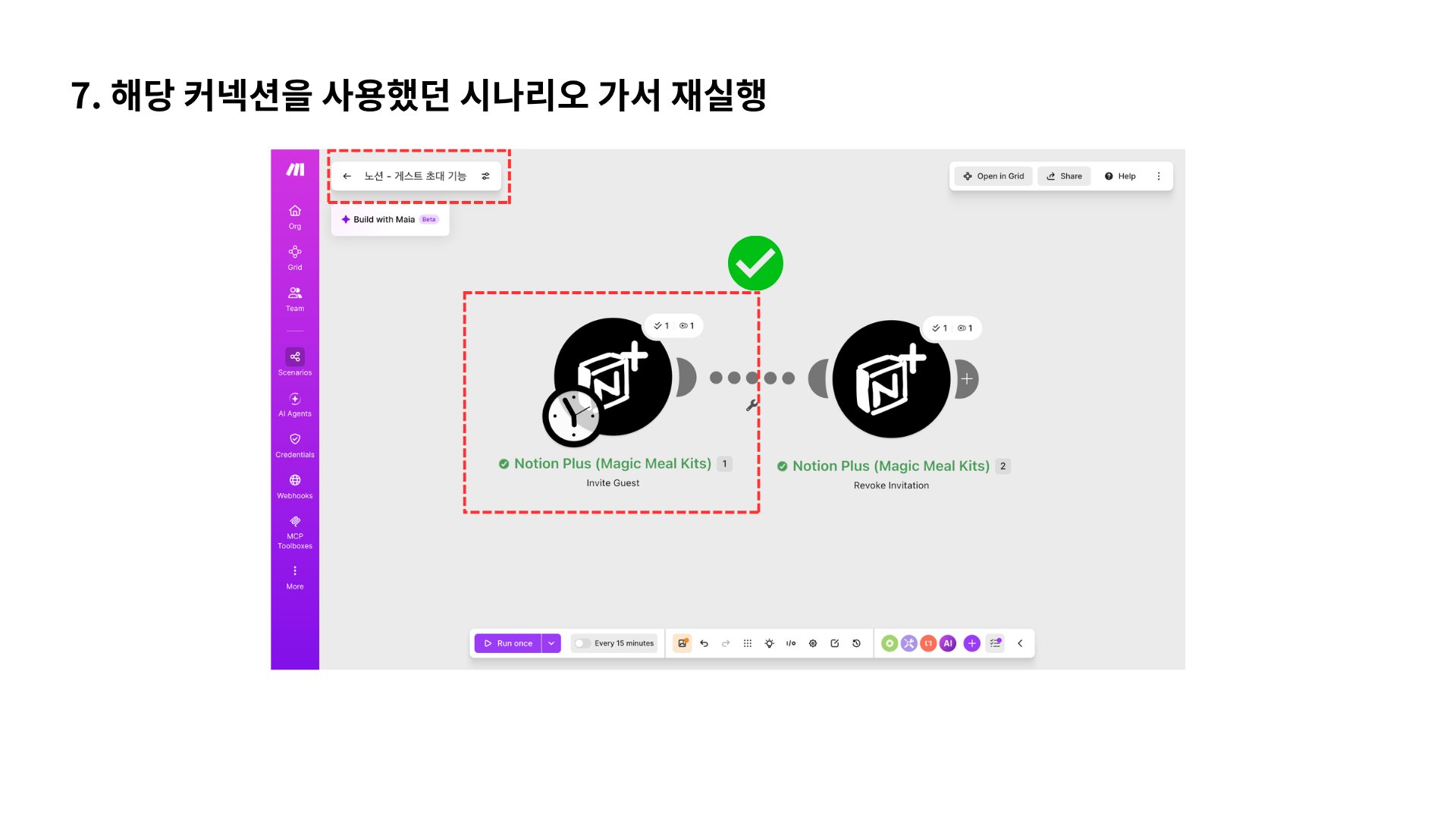
Where the new token comes from
The Notion Token is a browser session token, not an integration secret you generate in Notion’s settings. It is read from the browser where you are signed in to Notion, using the Make Notion Auth Helper Chrome extension. For a renewal you only need the Token value from the extension. If Space ID or User ID do not appear there, it does not block you — the existing connection already holds both, and this procedure never touches them.Sign in to Notion in the browser first, open a Notion page (not the login or settings
screen), then open the extension and copy the token.
If it still fails after renewing
- Verify you edited the right connection. Re-check the Used in N scenario count, and confirm the scenario that fails is pointing at the connection you just edited.
- Make sure the token is current. A browser that has been signed in to Notion for a long time can hold more than one saved session, and an old one produces exactly the same failure as an expired token. Signing out of Notion and back in, then copying the token again, rules this out.
- Check page access. If the error changes to a permission error, the token is fine and the page or database simply was never shared — see Notion connection & permission errors.