

Before you start
- You need a Magic Meal Kits account.
- You need access to make.magicmealkits.com/app-status.
- Have your account email and a short description of the symptom ready.
Download your system logs
1
Open System Logs
Go to make.magicmealkits.com/app-status
and click System Logs.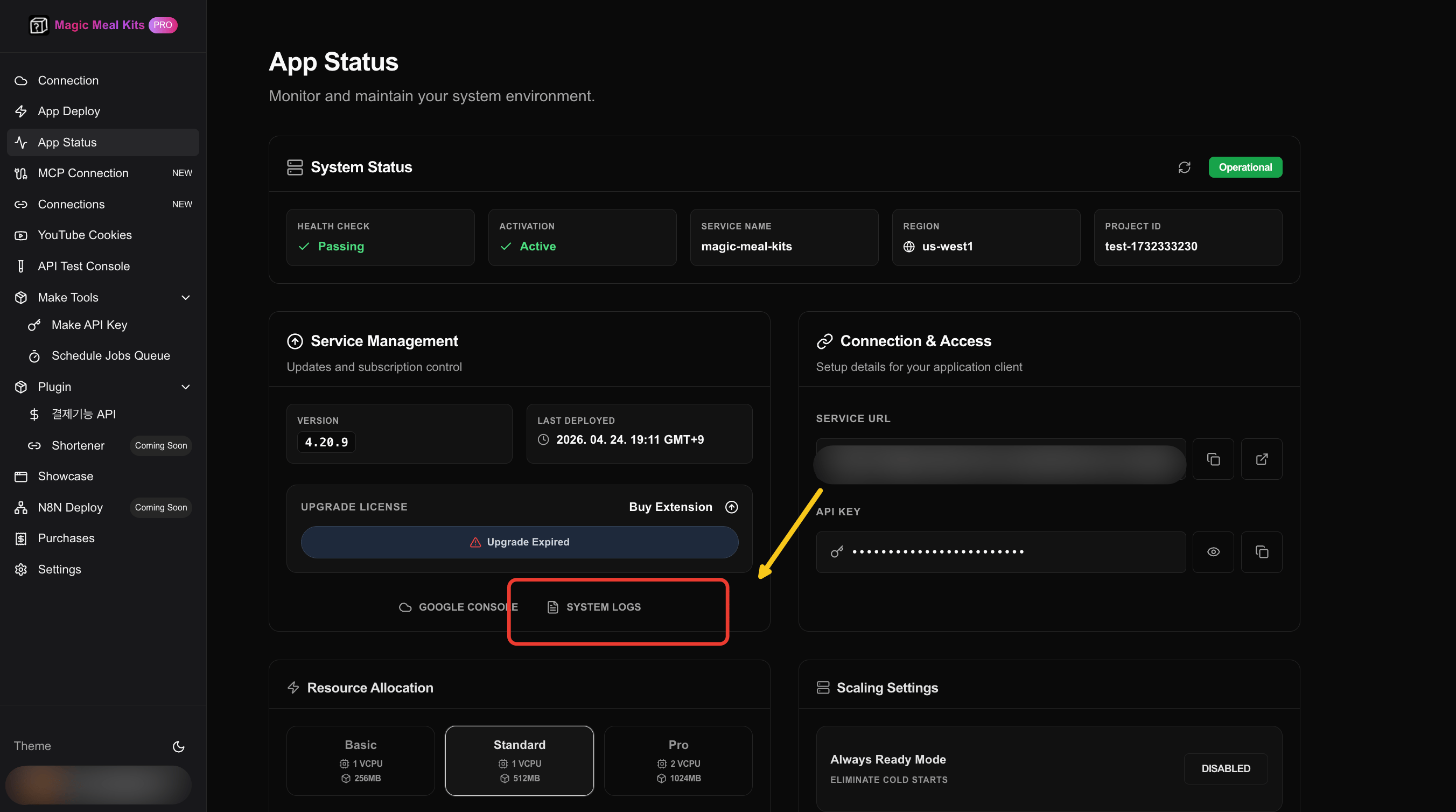
2
Select the service
In Google Cloud, click the magic-meal-kits service.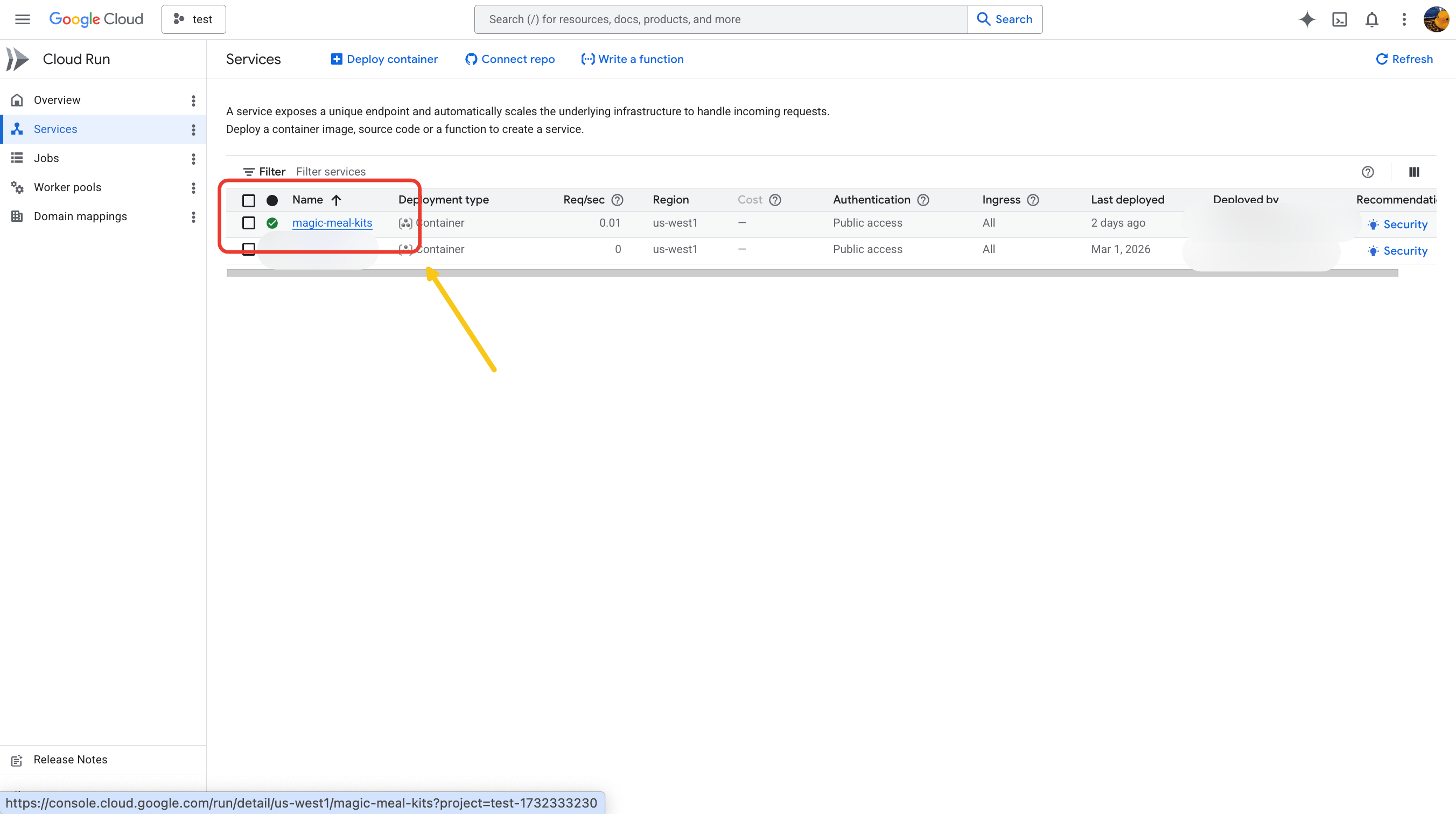
3
Screenshot the graphs
Take a screenshot of all the graphs shown on the screen — you’ll send these to
support.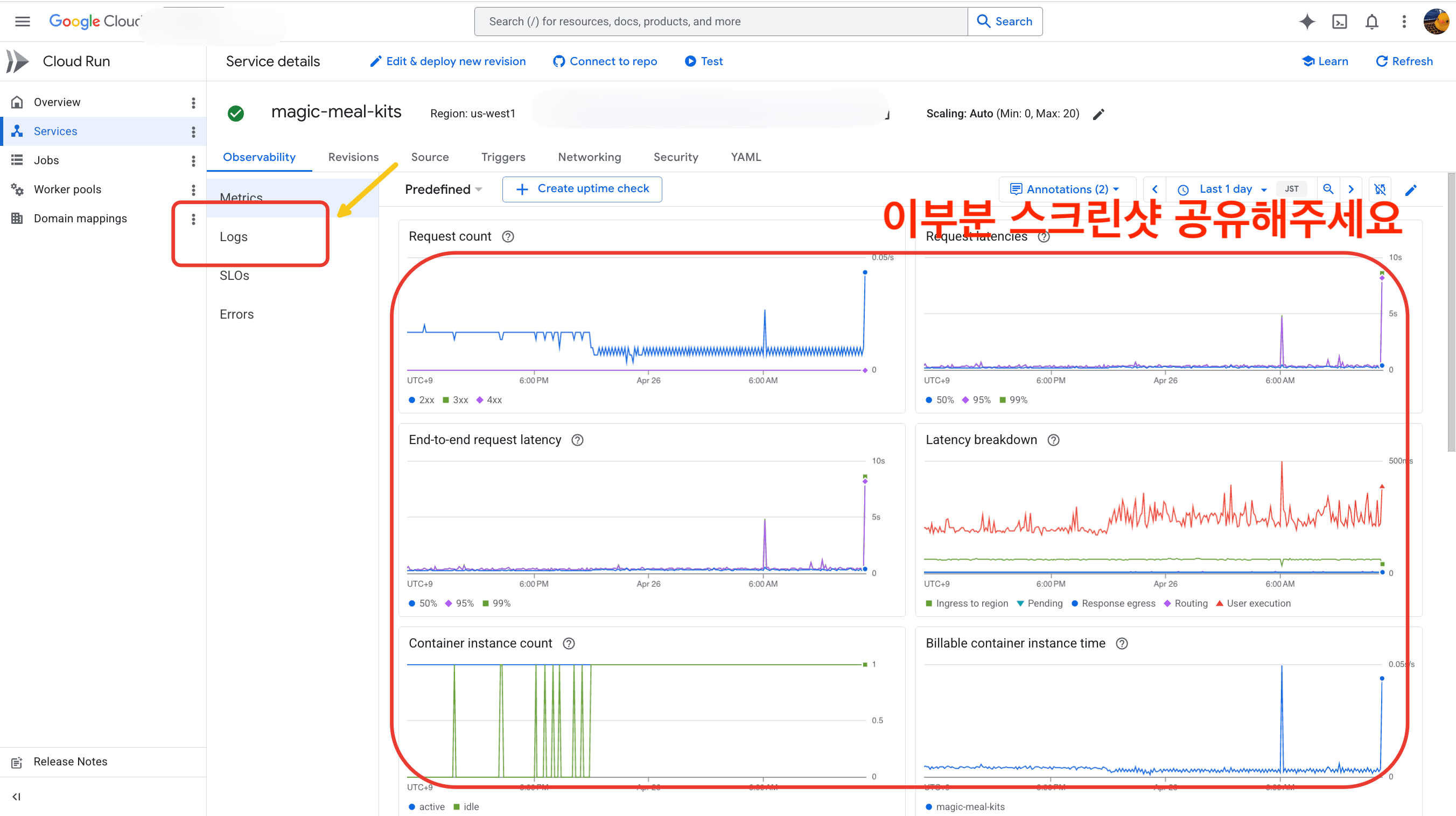
4
Open the Logs menu
Click Logs on the left, then click the button on the right.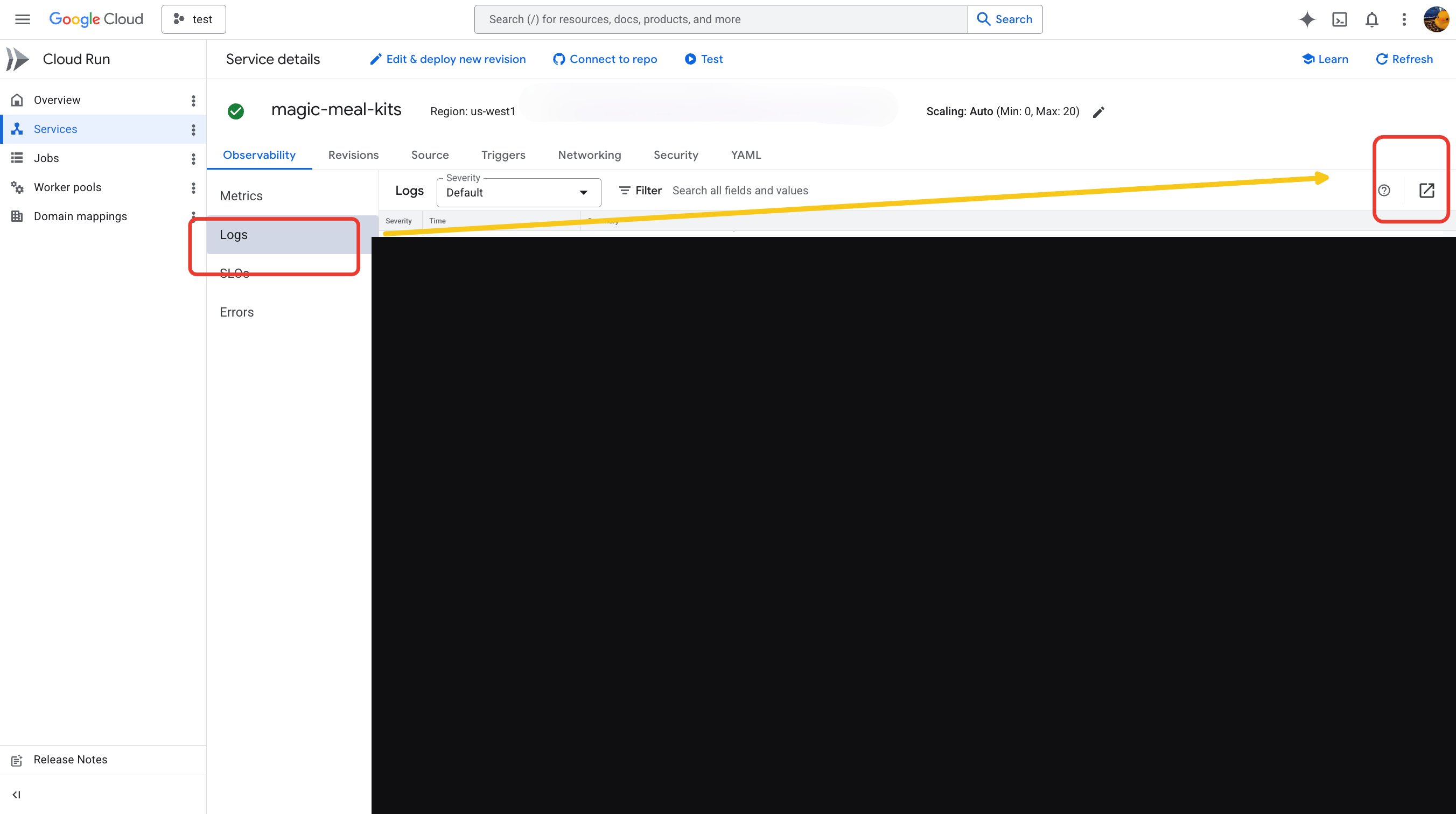
5
Click Action
When the view changes, click Action on the right.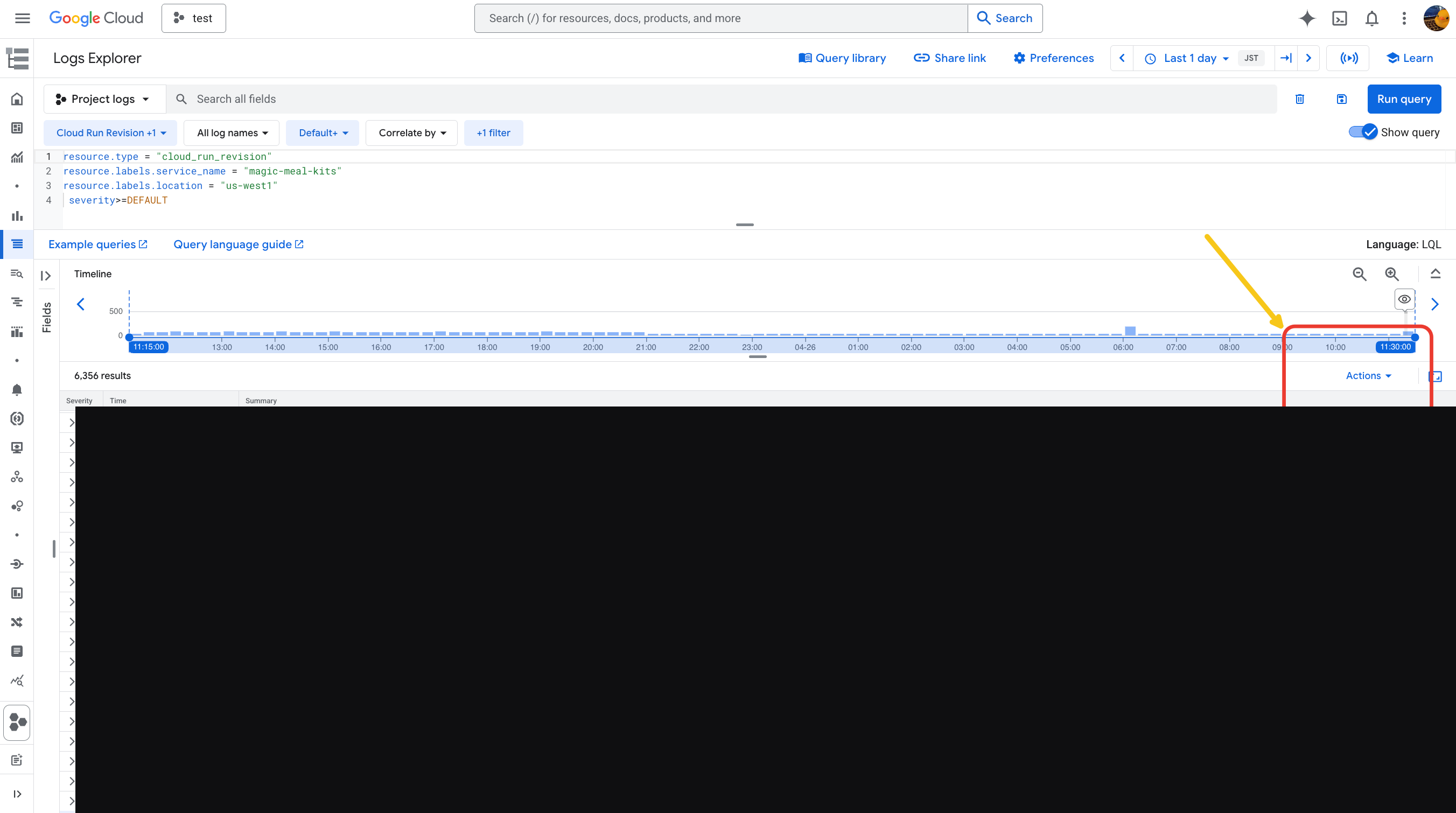
6
Click Download
Click Download at the bottom.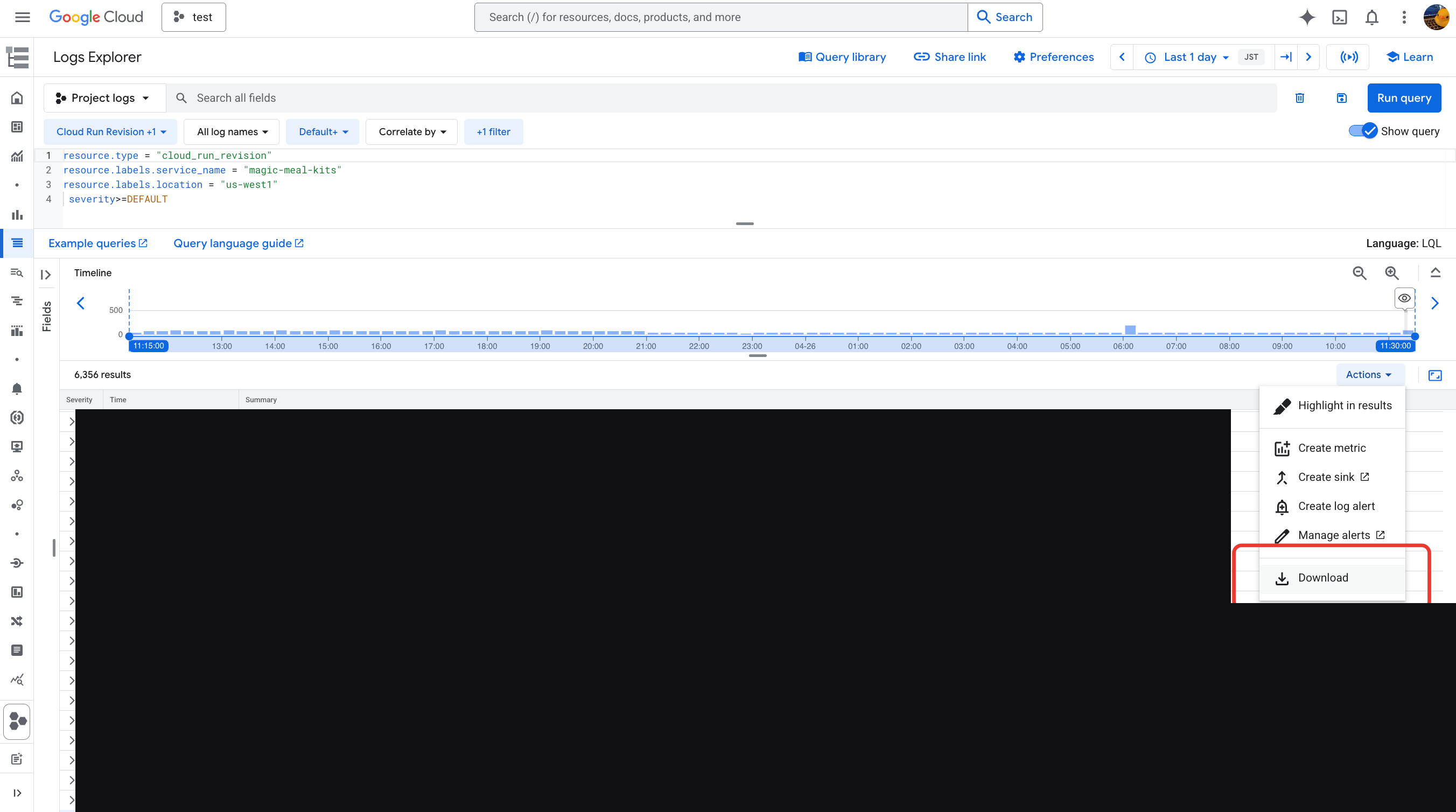
7
Set the row count to 10,000
Change the number to 10,000, then start the download.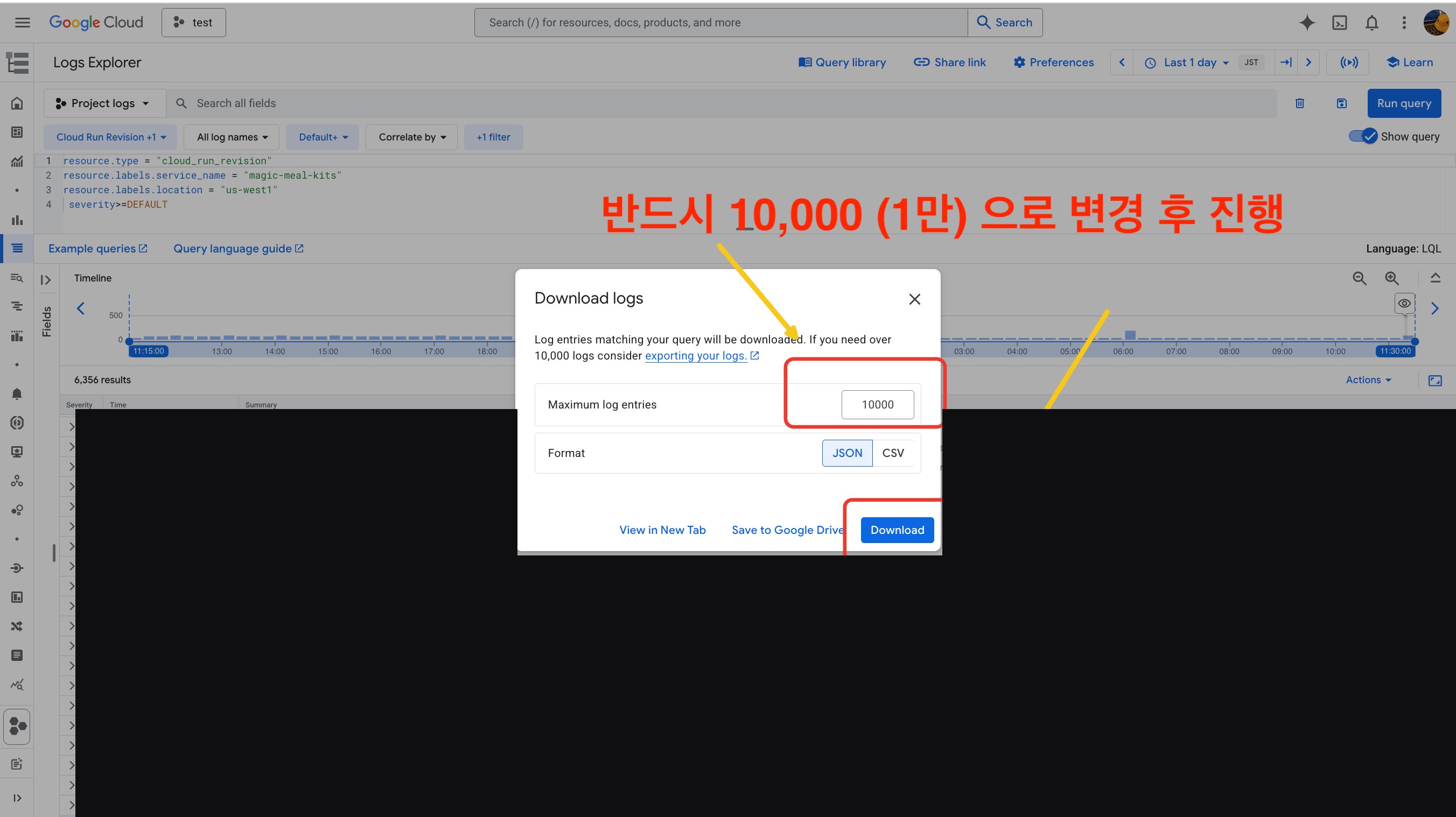
8
Confirm the download
Check that the download completed.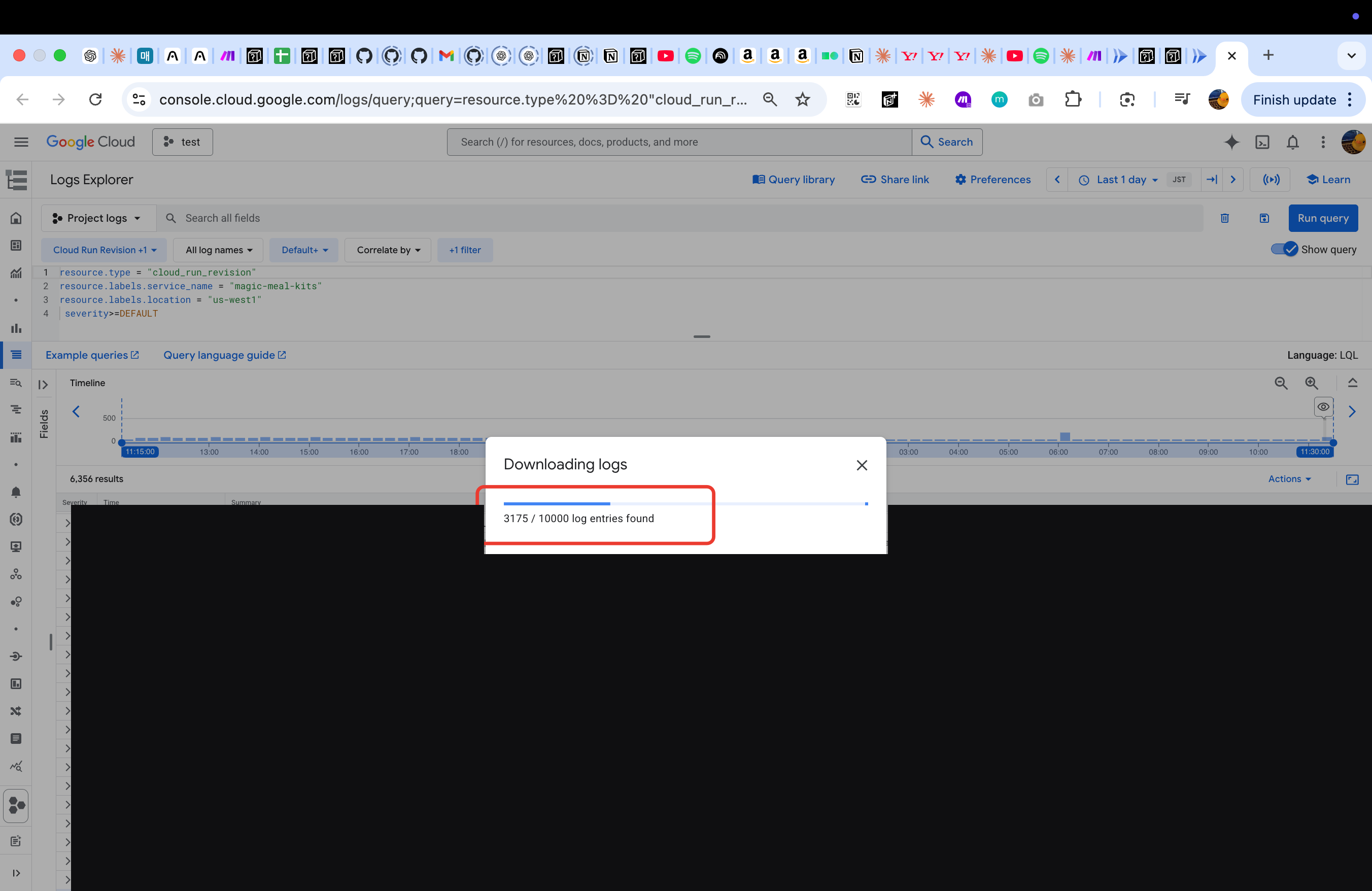
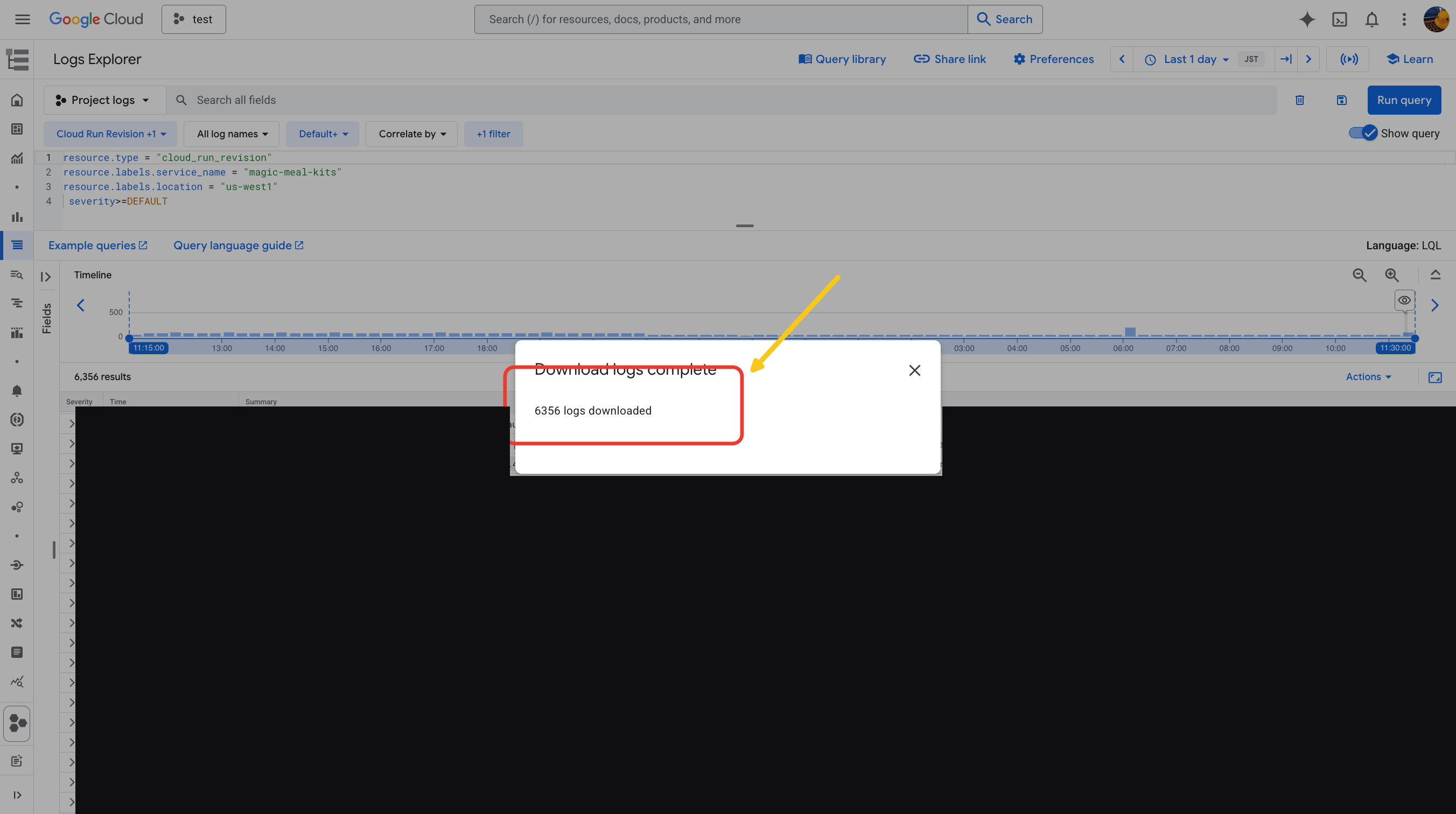
A successfully downloaded log file
Send these to support
Share the following four items with support via KakaoTalk:- Your Magic Meal Kits account email
- A description of the symptom
- The metrics graph screenshots (from Step 3)
- The log file (from Steps 7–8)
KakaoTalk support chat: pf.kakao.com/_fMgxdn/chat