

Stop the service
1
Sign in to Google Cloud
Sign in at
make.magicmealkits.com/google-connection.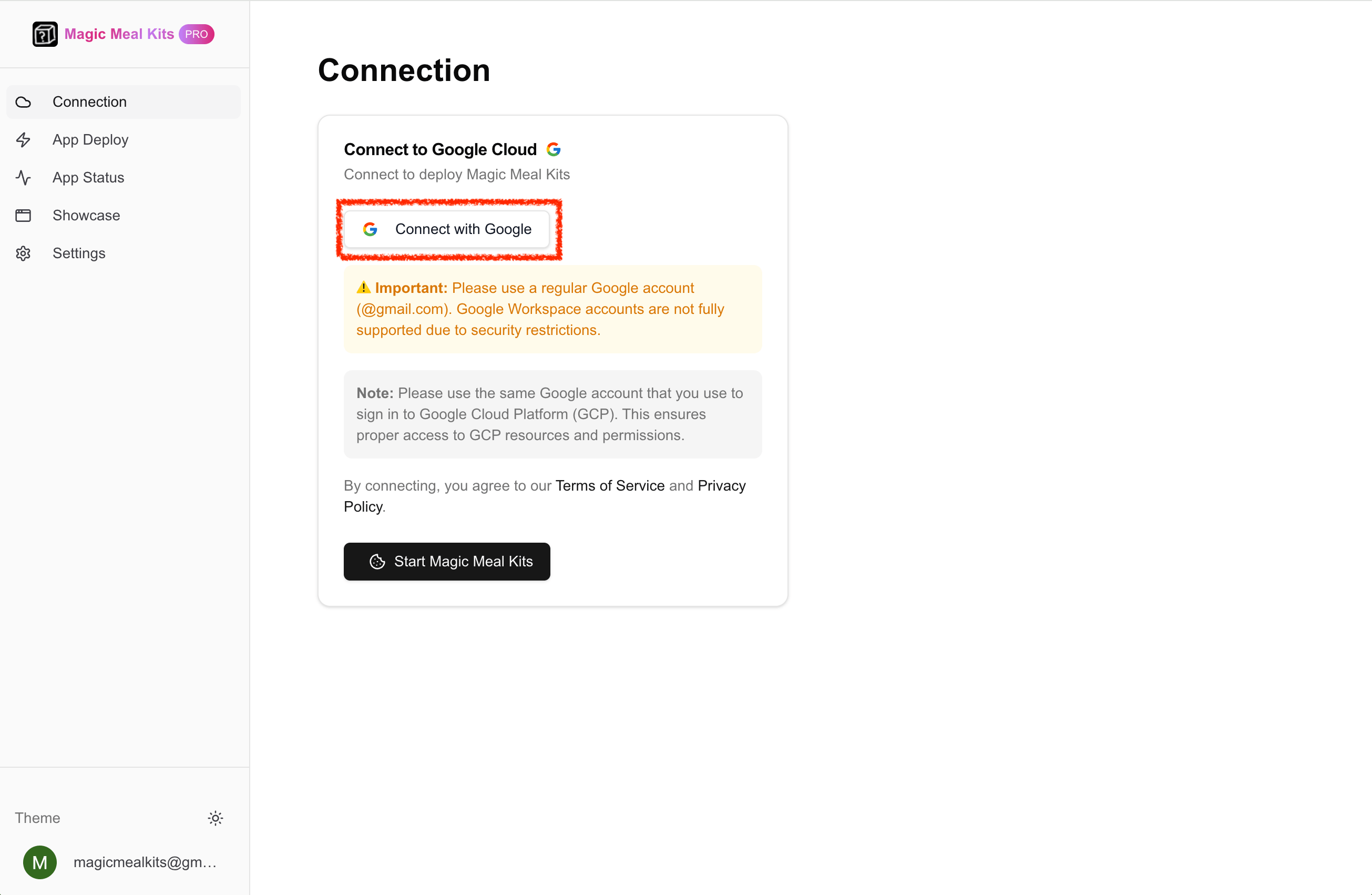
2
Confirm you're signed in
If you’re already signed in, you’ll see a screen like this.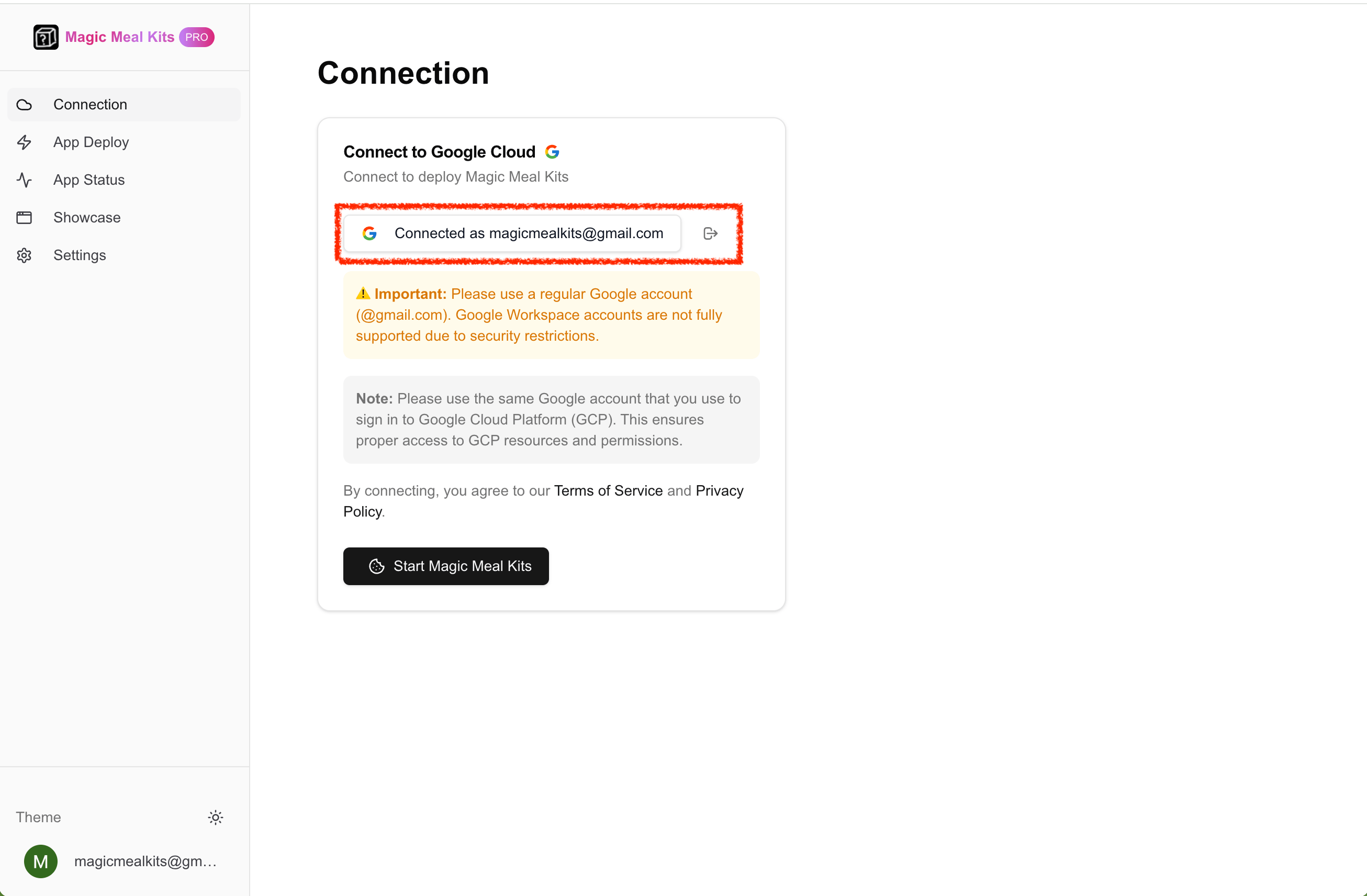
3
Open the App Status page
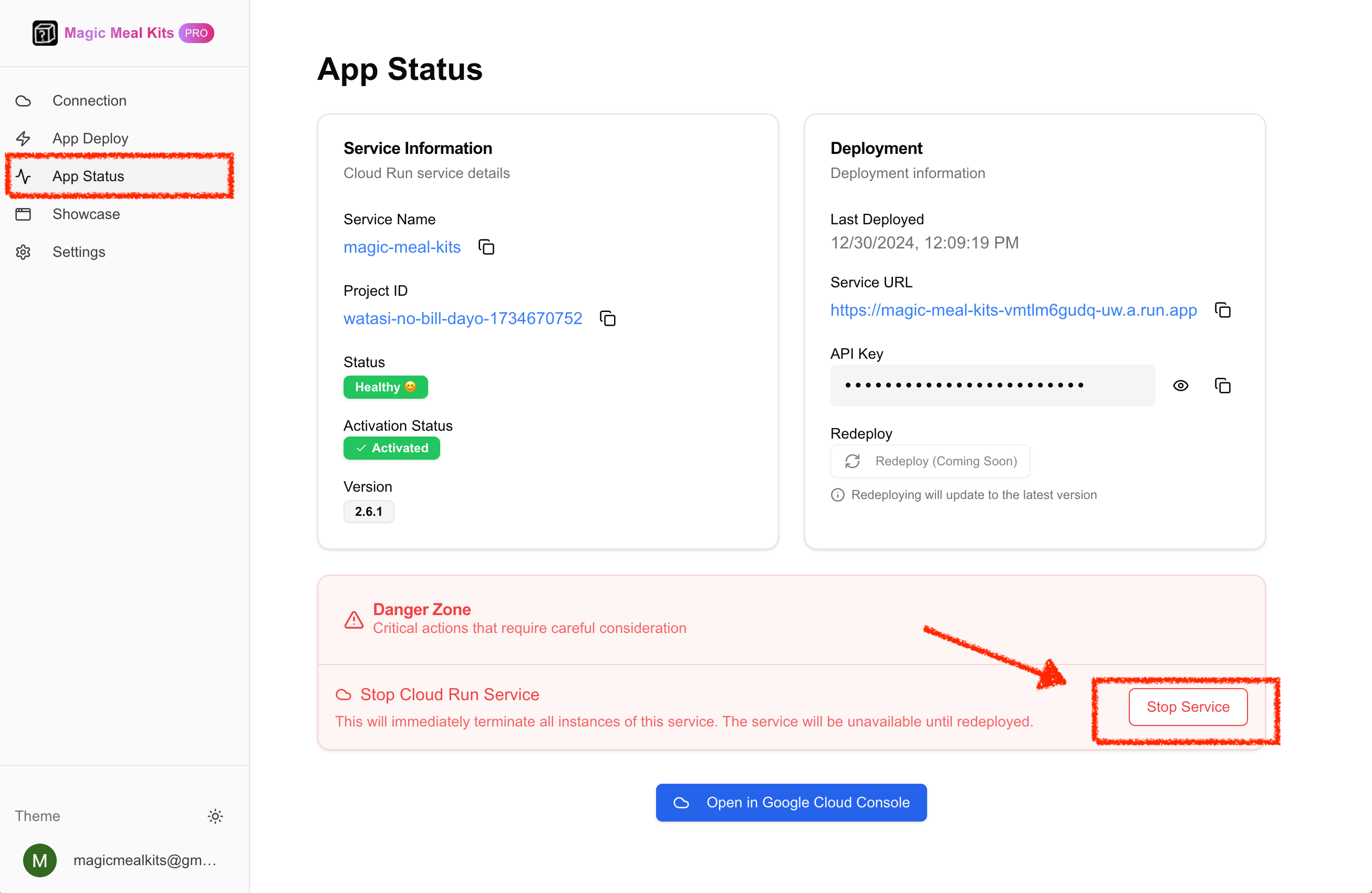
4
Stop the service
Click Stop Service and type 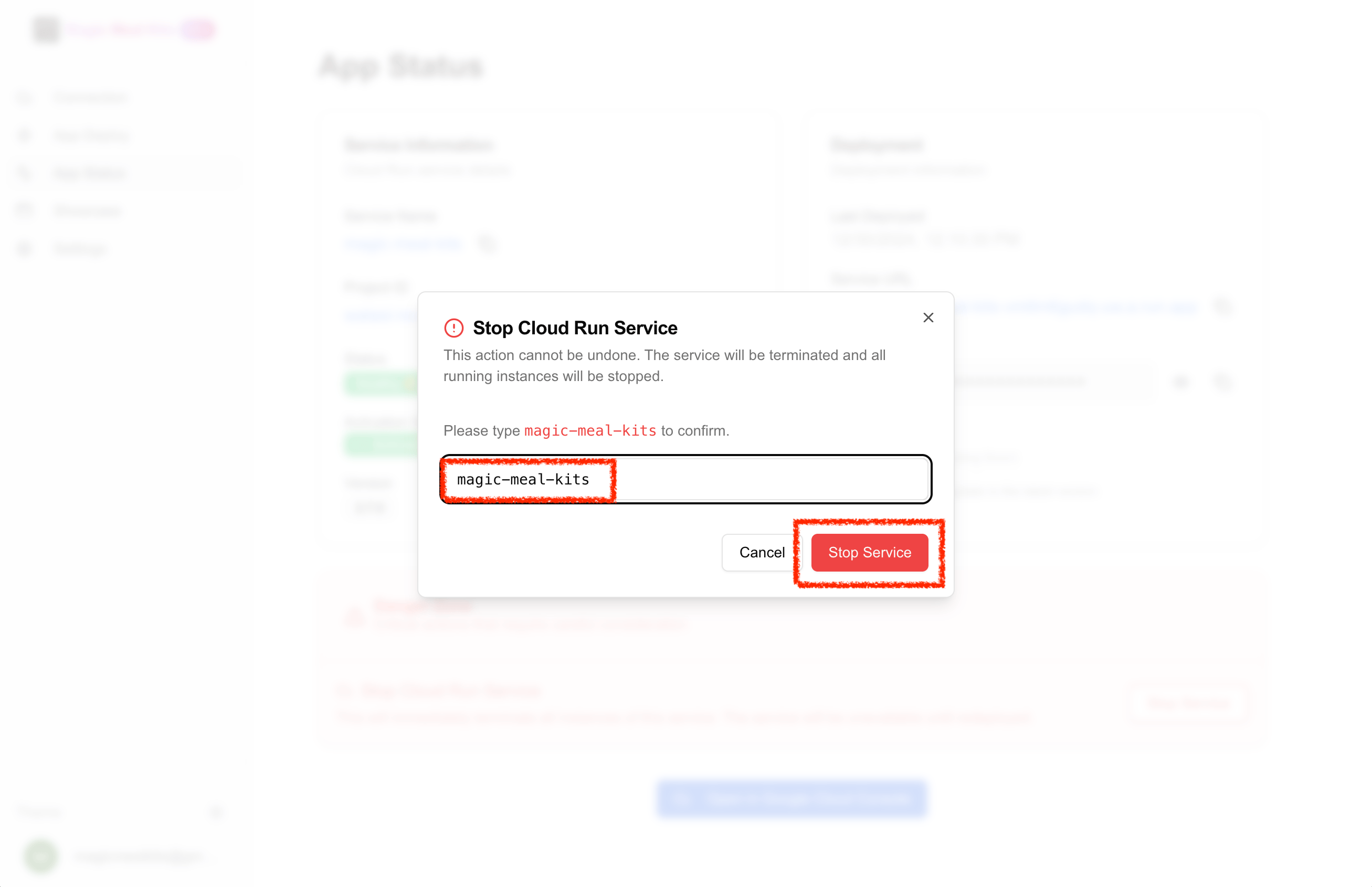
magic-meal-kits to confirm. The service stops.Reinstall the service
The service can be installed again at any time — reinstall from make.magicmealkits.com (see the full installation guide).After reinstalling, give it 20–30 minutes — don’t redeploy repeatedly. A freshly
reinstalled server may return
503 (cold start) or 429 (rate exceeded) for a while.
This is normal warm-up and usually clears on its own; repeatedly redeploying does not speed
it up.